

User guide · 07
Review videos with your client
Paste a YouTube, Vimeo or Google Drive link into the album. Your client pauses, leaves notes at the exact second and draws on the frame. On every plan.
Updated
Send a wedding film, a highlight clip or a yearbook video for your client to watch and comment on, right inside the album. Your client pauses where something should change, types a note or draws on the frame, and you know exactly which second to fix.
- Every plan can use it, with no minute limit.
- Up to 200 clips per album, each up to 6 hours long.
- Clips are not uploaded to Shotpik. You paste a link; the clip stays on your YouTube, Vimeo or Google Drive.
The screenshots show the Vietnamese interface; the buttons are in the same places in English.
Add a clip to the album
Open the album and choose the Video tab (next to the photos tab).
- Paste the link into Paste a YouTube, Vimeo, Google Drive or mp4 link, then press Add clip.
- Shotpik reads the clip and shows a preview with its length.
- Type a Clip name, for example "Wedding film, cut 1".
- Press Add clip (length). Your client sees the clip in the album right away.
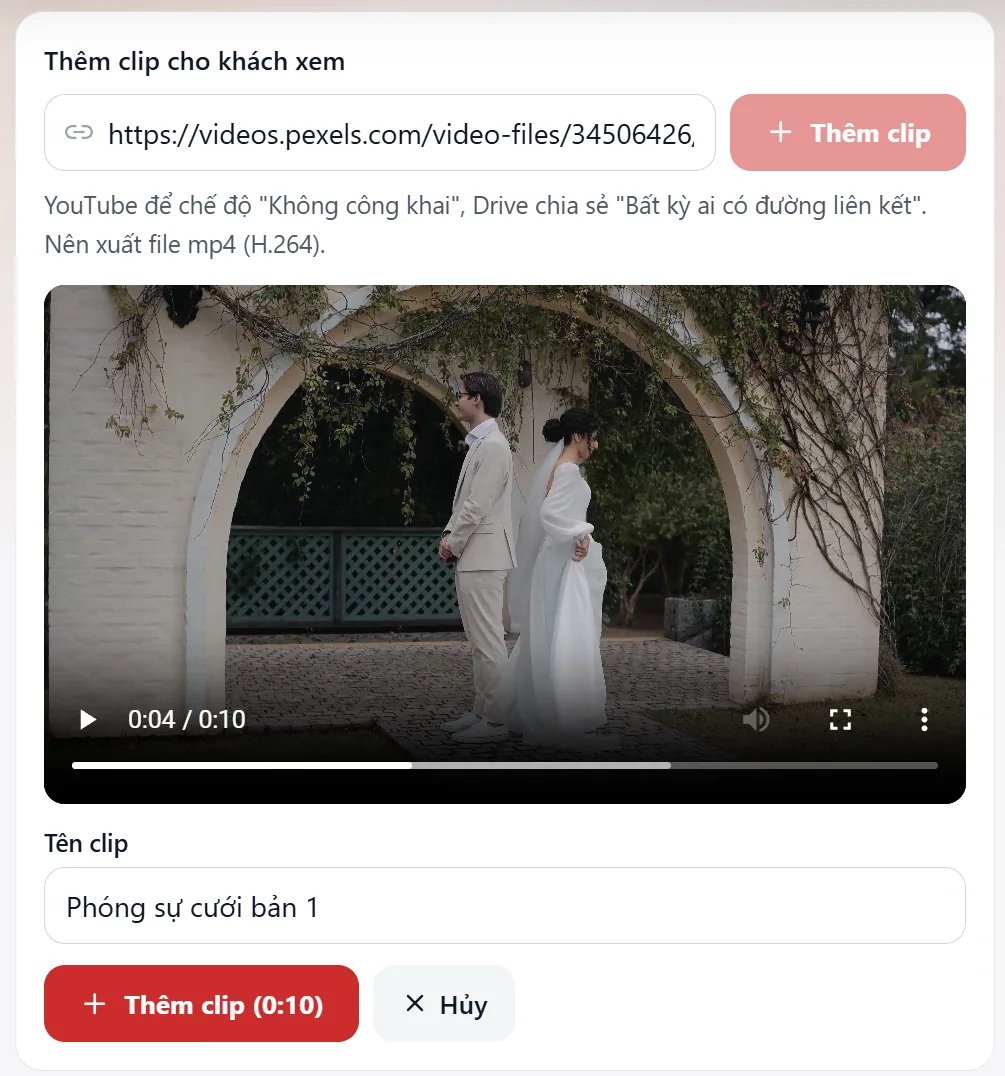
So the clip can play in the album:
- YouTube: set it to "Unlisted" (not "Private") and allow embedding.
- Google Drive: share it with "Anyone with the link".
- mp4 file: the link must open the file itself. Export mp4 (H.264) if you can.
Clips longer than 6 hours cannot be added. Trim them or split them into several clips.
Videos already in the Drive folder
Videos in the album's Google Drive folders join the Video tab each time the album syncs, for example when you press Update album. Each clip shows which folder it is in. The videos must be shared with "Anyone with the link".
When the album already has 200 clips, or a video is longer than 6 hours, Shotpik leaves it out and tells you how many were left out. Delete finished clips or trim the video, and the next sync adds them.
The buttons on each clip
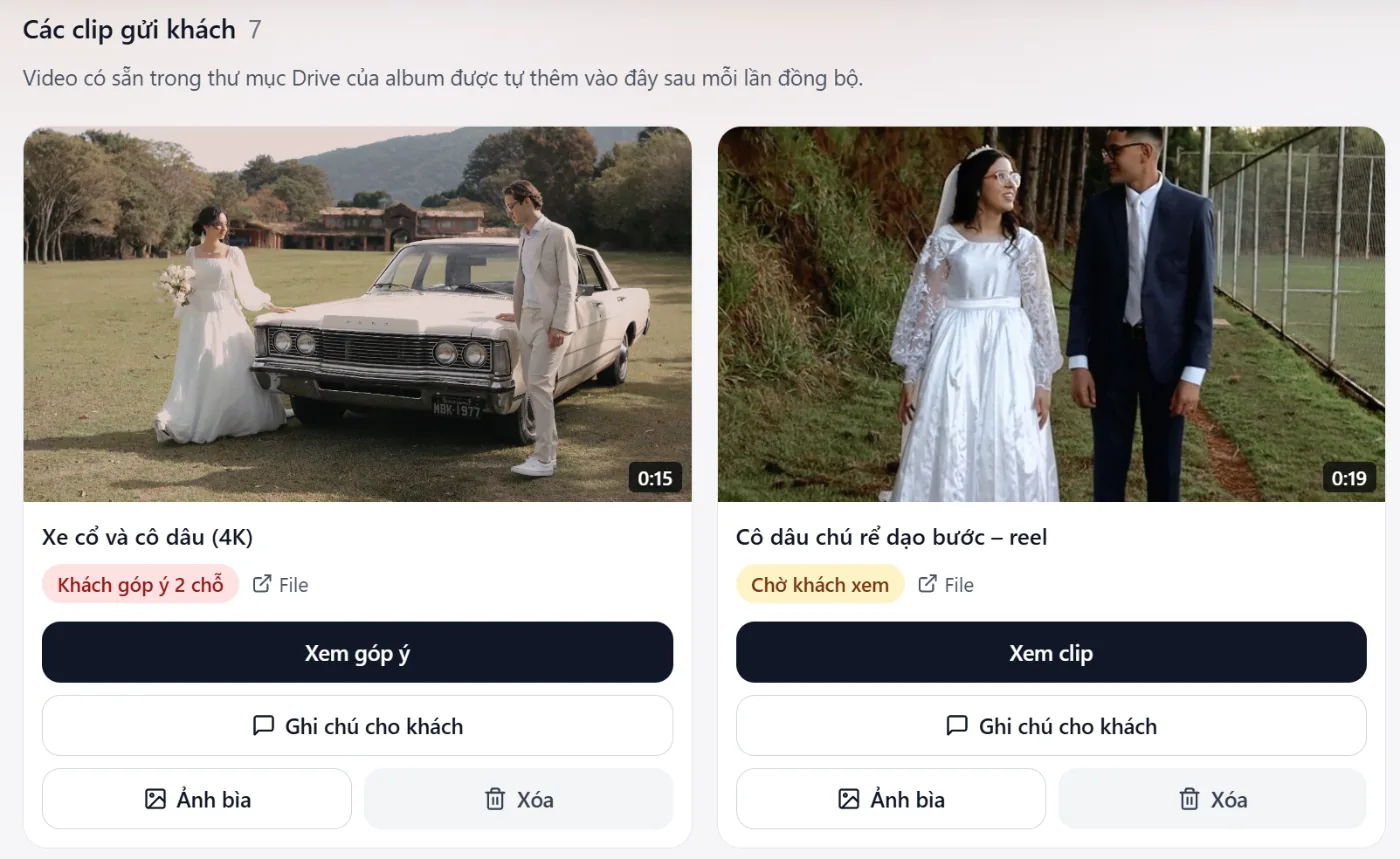
- Watch clip: opens the player. Once your client has left notes, it becomes See notes.
- Note for the client: a message your client reads in the clip list and while watching, for example "Cut 1, the music is temporary".
- Turn on drawing: only for YouTube and Vimeo clips (see below).
- Cover: pick a frame from the clip or a picture from your computer. Your client sees it in the list.
- Delete: removes the clip from Shotpik. Your clip on YouTube, Vimeo or Drive stays as it is.
The line under the clip name tells you where things stand: Waiting for the client or Client left 3 notes.
Let your client draw on the frame
- Google Drive clips and mp4 files: your client draws straight on the paused picture. Nothing else to do.
- YouTube and Vimeo clips: press Turn on drawing, then pick that clip's file on your computer. Your browser takes frames from the file. Keep the page open until it is done. From then on your client draws on the frame shown under the player.
Without drawing turned on, your client still watches and leaves written notes.
Your client watches and comments
Your client opens the album with the same link you sent, chooses the Video tab and presses Watch and comment.
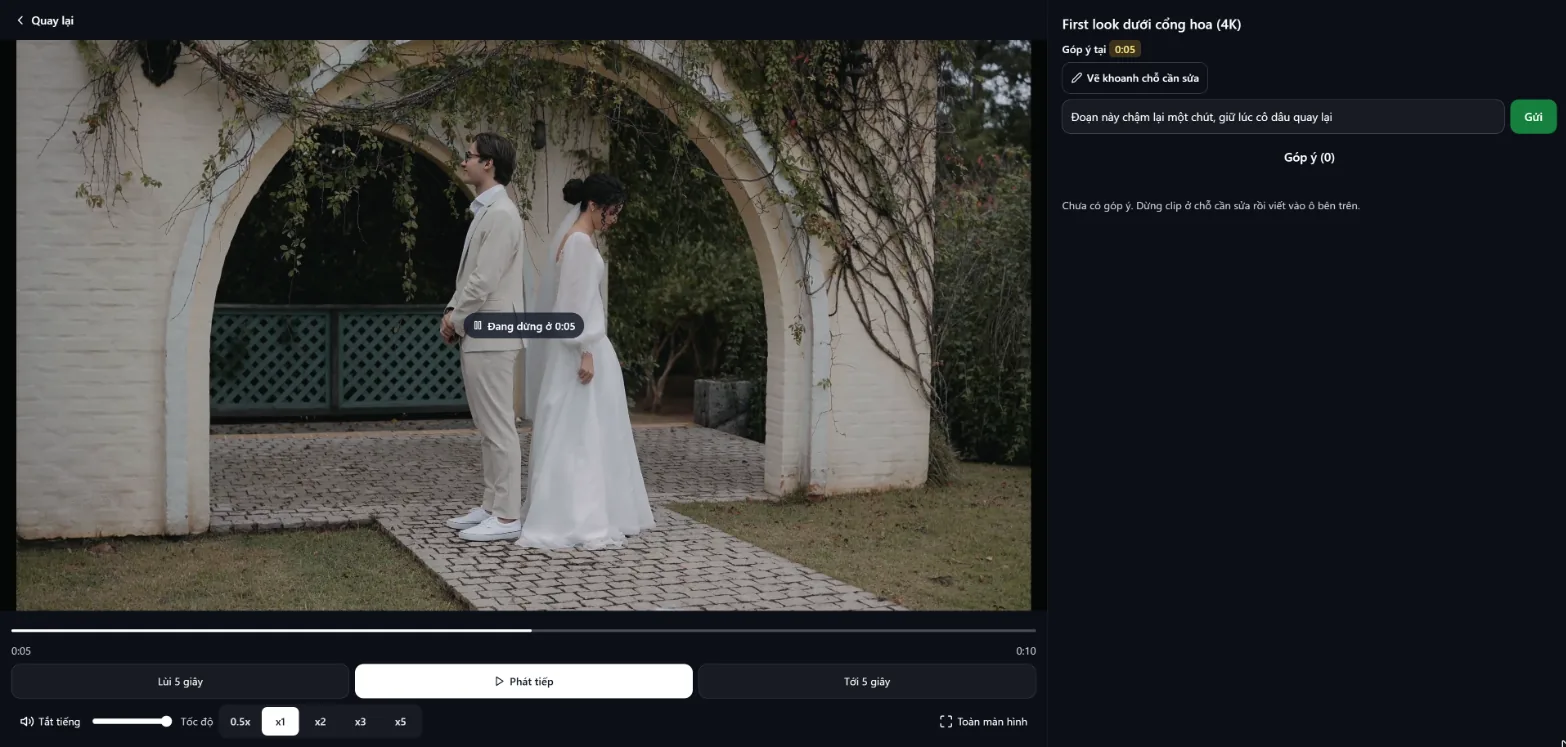
- Watch the clip, with Back 5 seconds, Forward 5 seconds, speed and full screen.
- Pause where something should change. The note box shows Note at the paused second.
- Type the note, for example "cut this part", and press Send.
- To point at something on the picture, press Draw on the frame, draw, add a message if needed and press Send.
Each note shows as a yellow dot on the timeline.
Read the notes and wrap up
Press See notes on the clip. Each note shows its second and text. Click a note to jump to that moment, and press Show the drawing to see what your client circled.
When the new cut is ready, add it with its own link, for example "Wedding film, cut 2", and delete the old one if you no longer need it.
Once everything is agreed, press Lock album in the toolbar and choose Lock video notes. Your client can still watch the clips but cannot add notes or drawings. Choose Unlock video notes to open them again.
Still have a question?
Message Shotpik and we will reply during working hours.