

User guide · 12
How to extract JPEGs from RAW files without Lightroom
Pull the JPEG already inside CR3, NEF, ARW and other RAW files into a new folder so clients can start picking, with no editing software. Free.
Updated
You shot RAW only, and your client wants to see photos today. You have not edited yet, and exporting a thousand files from Lightroom takes hours. Every RAW file already holds a JPEG made by your camera. The RAW to JPEG tool in Shotpik Agent pulls those JPEGs into a new folder, with no editing software needed.
RAW files are only read. New JPEGs go to the folder you choose. Nothing is overwritten, renamed or written next to your originals.
What you need
- A Windows computer, or a Mac with macOS 12 or later.
- Shotpik Agent: download for Windows or download for macOS. See Download and install.
- A Shotpik account to log in to the app. Sign up free at shotpik.com. This tool is free on every plan, including Free.
- A folder of RAW files, such as CR2, CR3, NEF, ARW, RAF, ORF, RW2 or DNG.
Step 1: choose the RAW folder
- Open Shotpik Agent and click RAW to JPEG in the left menu, under Photo tools.
- Under RAW folder, click Choose folder and pick the folder with your RAW files.
- Tick Include subfolders if photos sit in several subfolders.
- Tick Skip photos that already have a JPEG if some photos already have a JPEG with the same name, so nothing is exported twice.
- Under RAW types, pick the file types to use.
- Click Scan photos.
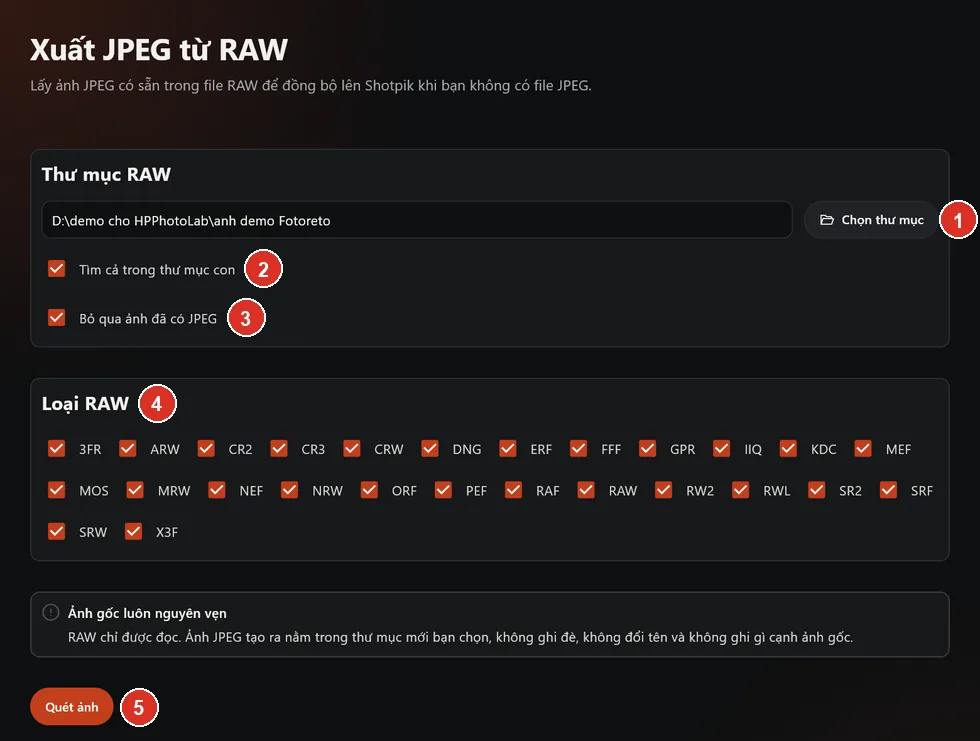
- Choose folder with the RAW files.
- Include subfolders.
- Skip photos that already have a JPEG.
- RAW types to use.
- Scan photos.
Step 2: check the scan result
The app shows how many photos are ready to export and the smallest and largest embedded JPEG sizes.
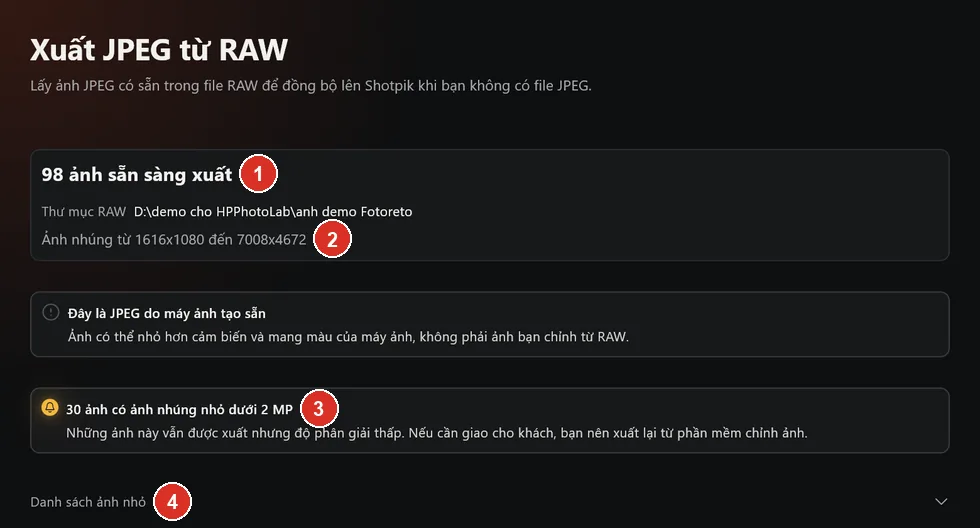
- Photos ready to export.
- Embedded JPEG sizes, smallest and largest.
- Warning when some embedded JPEGs are small.
- Small photos list: click to see each file name.
This is the JPEG your camera made. It can be smaller than the sensor resolution and carries your camera's look, not your own edit of the RAW. It is good for viewing and picking, not for final delivery.
You may see some warnings:
- Small embedded JPEG under 2 MP: still exported, but at low resolution. If these go to clients, export them again from your editing software.
- May have the wrong orientation: the app keeps the embedded JPEG's own rotation info, so a few portrait shots may appear sideways.
- Cannot be exported: the file has no embedded JPEG, only a thumbnail, is too large or cannot be read.
Step 3: export the JPEGs
- Under Destination folder, click Choose folder. It cannot be the RAW folder, sit inside it or contain it.
- Click Export n photos. The app shows progress and the time left. Click Stop to stop.
- The app keeps the same subfolder structure as the RAW folder.
When it finishes, the app shows how many photos were exported and any that failed. A photo whose name is already taken in the output folder is saved under another name. Photos exported in an earlier run are skipped. Click Open folder to see the photos, or Export another folder to continue.
Step 4: let your client pick
Click Add to live sharing on the result screen: the app adds the exported JPEG folder to live sharing. Then create an album as described in Sync from PC. After your client picks, follow How to filter client picks with File format set to your RAW type to collect the matching RAW files for editing.
Frequently asked questions
Is RAW to JPEG free?
Yes. RAW to JPEG is free for every Shotpik account, including the Free plan. Just download Shotpik Agent and log in.
How do I get JPEGs from RAW files without Lightroom?
Use RAW to JPEG in Shotpik Agent. The app takes the JPEG your camera already stored inside each RAW file, so no editing software is needed.
Do the exported photos look like my edit?
No. They are what the camera made when you shot, using the picture style or film simulation set on the camera.
Will exporting the same folder again create duplicates?
No. Photos exported in an earlier run are skipped.
Why do some photos only give a small image?
Some cameras or shooting modes store only a small embedded JPEG in the RAW file. For those photos, export from your editing software instead.
Are my RAW files changed?
No. The app only reads RAW files and writes new JPEGs to the folder you choose.
Still have a question?
Message Shotpik and we will reply during working hours.