

User guide · 17
How to download original photos and videos from a Shotpik album
Download the original photos and videos of a Shotpik album: the whole album, client-hearted photos, commented ones or a tag. Works with album links from other studios. Free.
Updated
Downloading an album in the browser means saving photos one by one or waiting for a ZIP, which often fails midway and loses the subfolders. Second shooters, retouchers and partner studios who get an album link also need exactly the original photos the client picked. The free Download from Shotpik tool in Shotpik Agent downloads every original photo and video of an album to your computer one by one, keeps the subfolders, and picks up where it left off if you stop.
Files already on your computer are never changed. The app does not delete or overwrite anything.
What you need
- A Windows 10 (64-bit) computer or later, or a Mac with macOS 14 or later.
- Shotpik Agent 1.1.7 or later: download for Windows or download for macOS. See Download and install.
- A Shotpik account to log in to the app. Sign up free at shotpik.com. This tool is free on every plan, including Free.
- An album in your account, or a Shotpik album link from any account, view-only links included. If the album has a password, you need it.
Step 1: choose the album
- Open Shotpik Agent and click Download from Shotpik in the left menu, under Photo tools.
- Your own album: choose An album in your account, click Choose album and pick it from the list.
- An album from a link: choose Paste a Shotpik album link, paste the link and click Open link. Links like
https://shotpik.com/albums/..., view-only links and a studio's own domain all work. - If the album has a password, the app shows This album has a password. Type it and click Open album. The password is only used to open the album and is not saved on the computer.
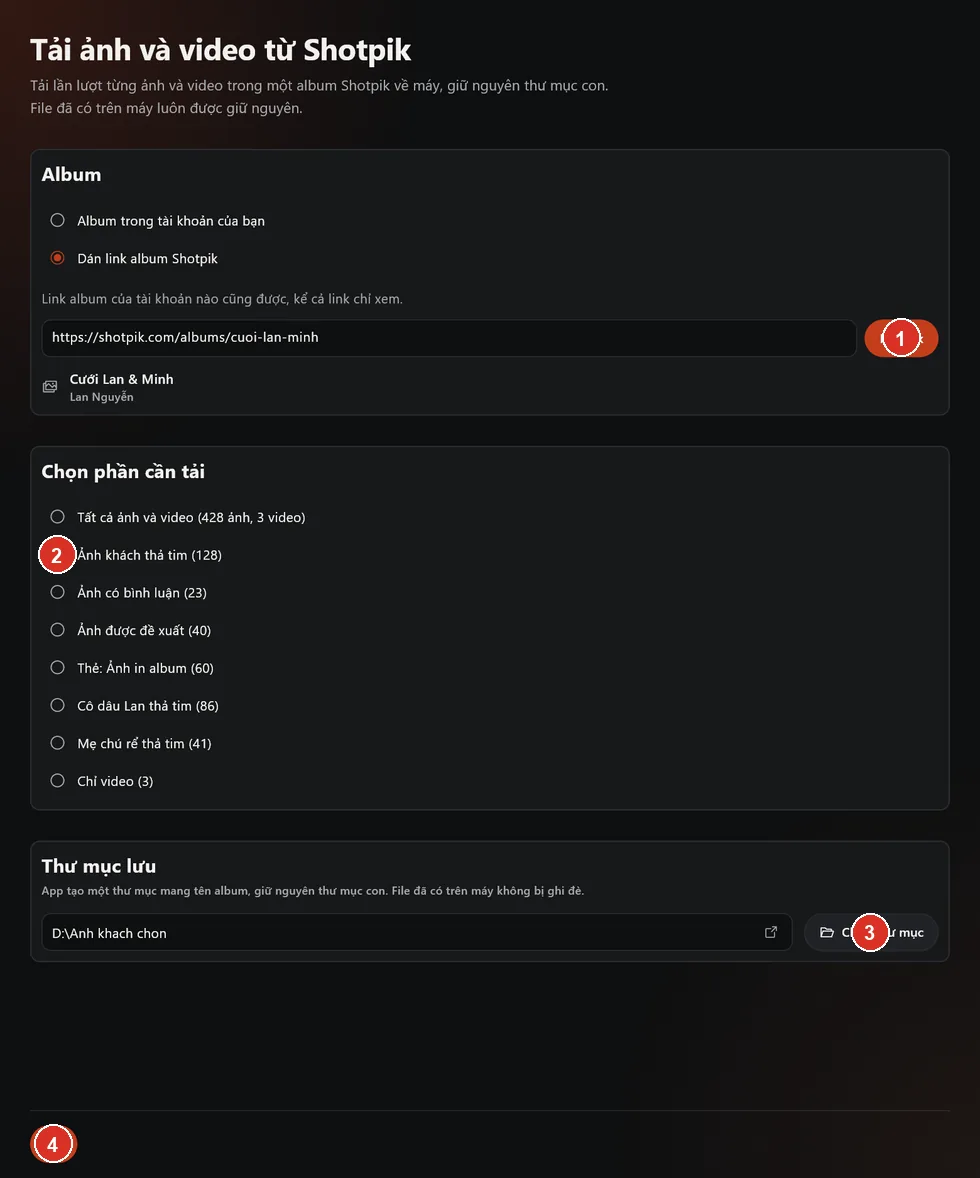
- Open link: click it after pasting the album link.
- Choose what to download: every row shows how many files it holds.
- Choose folder to save the files.
- Download.
Step 2: choose what to download
Under Choose what to download, every row shows its number of photos or videos:
- All photos and videos
- Photos the client hearted
- Photos with comments
- Recommended photos
- Photos with a tag, for example Tag: Album prints
- Photos one person hearted, when the album lets several people pick, for example Lan hearted
- Videos only
You get the original photos, not the small previews shown on the web.
Step 3: choose where to save and download
- Under Save to, click Choose folder. The app makes a folder named after the album inside it and keeps the album's subfolders.
- Click Download. The app downloads the files one by one and shows the progress. Click Pause and then Resume, or Stop to end it.
- If some files failed, click Retry failed files.
Stopped midway or lost the connection? Partly downloaded files are kept. Click Download again with the same folder to continue.
If the folder already has a file with the same name:
- An identical file is skipped, so no duplicate is made.
- A different file is saved under a new name, and the old one is kept.
How to fix common errors
- Not a Shotpik album link: check the link and paste it again.
- Wrong password: type it again. After several wrong tries Shotpik blocks it for a while; try again in a few minutes.
- The owner does not allow downloads: the album owner turned downloads off. Your own albums are never blocked.
- The album has expired: ask the album owner to extend it, then try again.
- The album owner's computer is off: a Local album serves photos from the owner's computer, so it must be on. Try again when it is back on.
- YouTube or Vimeo videos are skipped: they can only be watched on YouTube or Vimeo and have no file to download.
- The album is being restored from the archive: try again in a few minutes.
Frequently asked questions
Is Download from Shotpik free?
Yes. Download from Shotpik is free for every Shotpik account, including the Free plan. You only need to download Shotpik Agent and log in.
How do I download a whole Shotpik album at once?
Open the album in Download from Shotpik, choose All photos and videos, choose a folder and click Download. The app downloads every original photo and video and keeps the subfolders.
Do I get the original photos or just small versions?
The originals. The app downloads the album's original files, not the small previews shown on the web.
How do I download only the photos my client hearted?
When choosing what to download, pick Photos the client hearted. If several people picked, choose the person, for example Lan hearted.
Can I download another studio's album from a link?
Yes. Choose Paste a Shotpik album link, paste the link the studio sent, view-only links included, and click Open link. If the owner turned downloads off, it cannot be downloaded.
Will downloading the same album again create duplicates?
No. Download into the same folder and files that are already there and identical are skipped.
Still have a question?
Message Shotpik and we will reply during working hours.