

User guide · 03
Sync photos from your PC with Shotpik Agent
Put photos from your computer or NAS drive on Shotpik without uploading to the server. Secure, with no cloud costs.
Updated
Shotpik Agent is an app you install on your computer. It puts your photos on Shotpik without uploading them to the server. The originals stay on your machine, so they stay secure and there are no cloud costs. You can sync photos from your computer or from a NAS drive connected to it. Clients still open the album link to view, pick and download photos as usual.
What clients need from you
Photos are served directly from your machine, so all three of these must be true:
- The computer is on and online.
- Shotpik Agent is open.
- If you use a NAS, the drive is connected to that computer.
If one is missing, clients cannot see the photos until the computer and the app are back.
Download and install
- Download Shotpik Agent for Windows, then open the file to install it.
- Windows may show a SmartScreen warning because the app has no digital signature yet. Click More info, then Run anyway.
There is no phone version of Shotpik Agent.
Log in and add a folder
- Open the app and click Log in via web. Your browser opens so you can log in.
- Use the same Shotpik account you create albums with.
- In the app, click Add folder, then choose a photo folder on your computer or NAS drive.
Each folder has a name and an ID. Use either one to find the folder when you create an album.
Once added, the folder appears on the Live photo sharing screen:
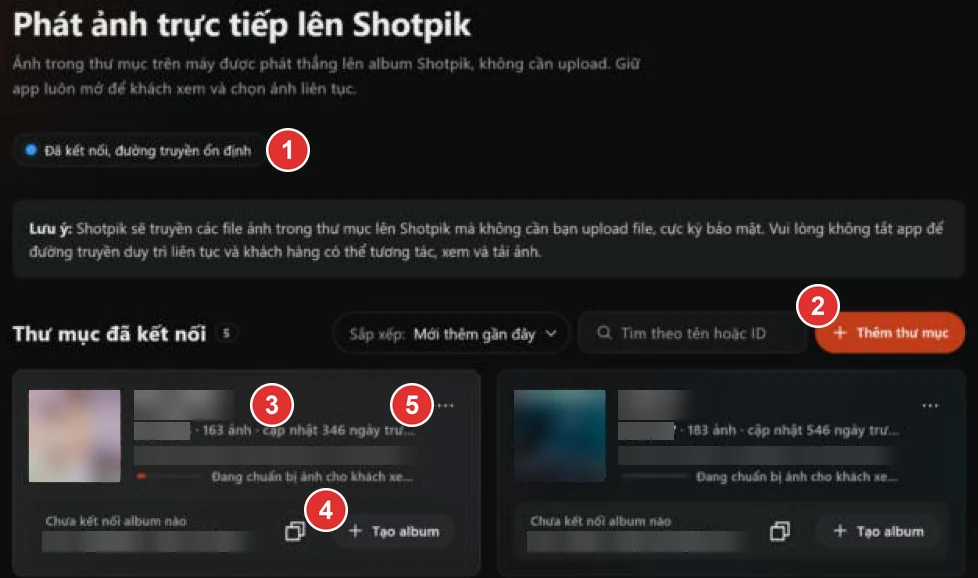
- Connection status: shows that the app is connected to Shotpik and whether the connection is stable.
- Add folder: choose another photo folder on your computer or NAS drive.
- Folder name and ID: use these to find the folder when you create an album.
- Create album: create an album straight from this folder.
- Three dots: open the folder's menu.
Create an album
- On shotpik.com, press Create album.
- Choose the Sync from PC tab.
- Search for the folder by name, ID or path, then select it.
- Enter the album name and press Create now.
You can also press Create album on the folder's card in the app.

The Sync from PC tab shows the folder search once Shotpik Agent is connected. Before that, it shows how to install the app. No need to reload the page: the folder search appears by itself once the app connects.
While you use it
- New photos: photos added to the folder appear in the album by themselves.
- File types: the app takes JPG, PNG, GIF and WebP. Other types such as HEIC must be exported to JPEG first.
Press the three dots on a folder's card to open its menu:
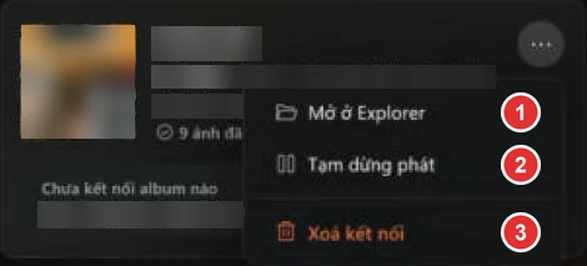
- Open in Explorer: open this folder on your computer.
- Pause sharing: clients cannot see that folder's photos for now.
- Remove connection: the album stops showing the photos, and the originals stay on your computer. After you press remove, you have 10 seconds to change your mind.
Scroll to the bottom of the screen and press Advanced to see the app's settings:

- Share photos via Tunnel: keep this on so clients can view, pick and download photos at any time. Turn it off only for computer maintenance.
- Keep the computer awake while sharing: turn this on so the computer does not sleep while a folder is being shared. The screen still turns off as usual.
- Open at startup: turn this on so the app opens when the computer starts.
- View log: use this when you need to send the Shotpik support team details to check the connection.
Get the photos clients picked
Once clients finish, you can copy those photos to a folder on your computer with Export via Shotpik Agent. See Manage an album for more.
Frequently asked questions
Does it use cloud storage?
No. The originals stay on your computer and are not uploaded to the server.
What if I turn the computer off?
Clients cannot see the photos for now. Turn the computer on and open Shotpik Agent again, and they can continue.
Can I use a NAS drive?
Yes. The drive must be connected to the computer running Shotpik Agent.
Is there a phone version?
No. Shotpik Agent only runs on a computer.
Which file types work?
JPG, PNG, GIF and WebP. Other types such as HEIC must be exported to JPEG first.
Still have a question?
Message Shotpik and we will reply during working hours.