

User guide · 13
How to sort photos from several cameras by capture time
Merge photos from several photographers and cameras into one timeline, fix clock offsets and batch rename them in shooting order. Free.
Updated
At a wedding or event with two or three photographers, every camera names files its own way and every clock is a few minutes off, so merged photos end up out of order. The Sort by capture time tool in Shotpik Agent merges all cameras into one timeline, fixes the clock offsets, and copies the photos to a new folder with new names, in the order things happened.
Your originals stay untouched. The app only copies to a new folder with new names. It never renames or writes into your originals.
The app works in photo sets: files with the same name and different extensions, such as IMG_0012.CR3, IMG_0012.JPG and IMG_0012.xmp, always travel together and get the same new name.
What you need
- A Windows computer, or a Mac with macOS 12 or later.
- Shotpik Agent: download for Windows or download for macOS. See Download and install.
- A Shotpik account to log in to the app. Sign up free at shotpik.com. This tool is free on every plan, including Free.
- Each photographer's or camera's photos in a separate folder.
Step 1: add each photographer's folder
- Open Shotpik Agent and click Sort by capture time in the left menu, under Photo tools.
- Under Photo folders, click Add folder and pick the folder of one photographer or one camera.
- Fill in Photographer name (optional) if you want the name in the new file names.
- Repeat for every photographer and camera.
- Click Read photo info. If you add or remove a folder later, the app only reads what changed and keeps your clock offsets.
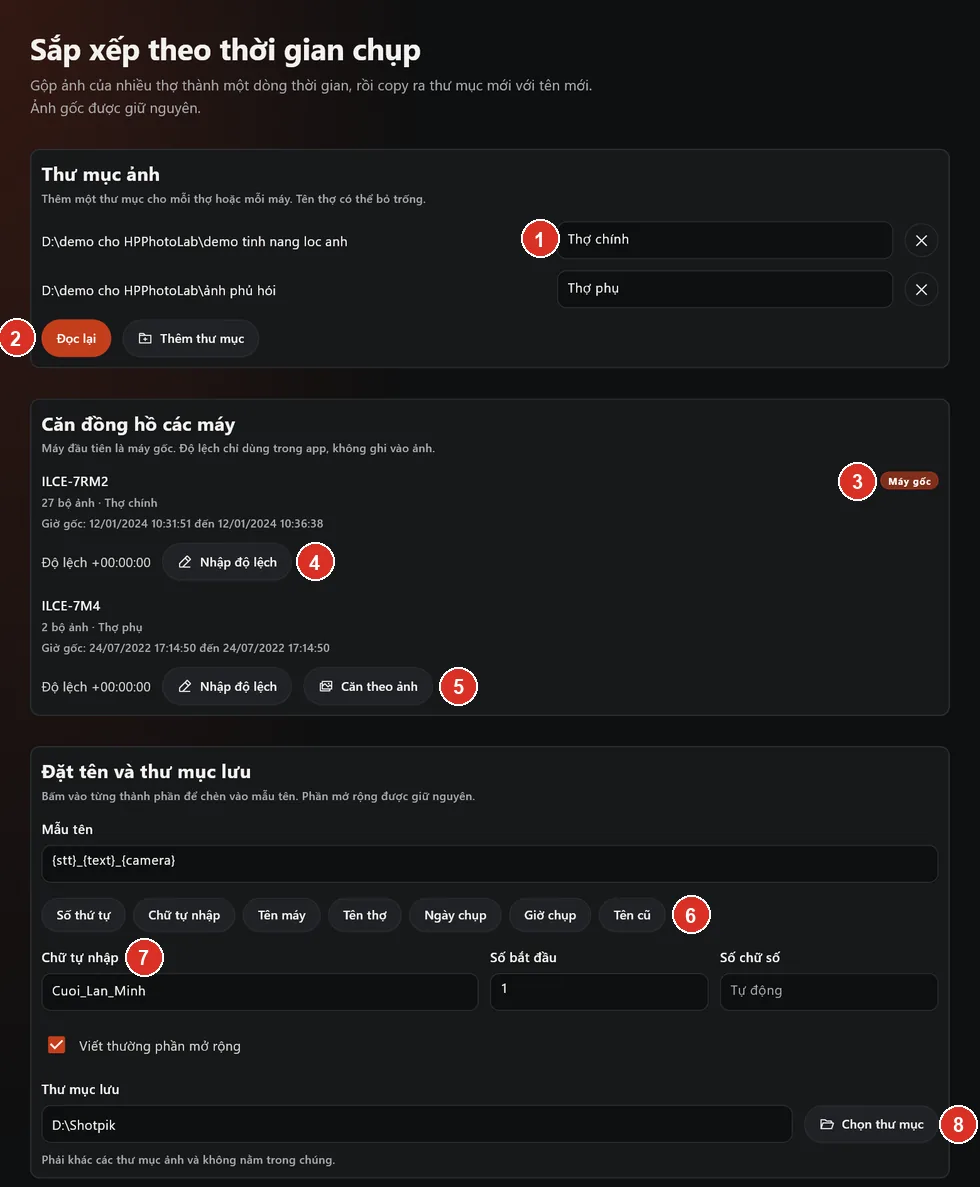
- Photographer name for each folder.
- Read photo info: after the first read it becomes Read again.
- Reference: the camera the others are aligned to.
- Type offset when you know how far a camera is off.
- Align by photo when you have two photos of the same moment.
- Name pattern parts: click to insert them into the pattern.
- Custom text, such as the client or event name.
- Choose folder for the renamed photos.
Step 2: fix the clock offset between cameras
Under Align camera clocks, the first camera is the Reference. Every other camera is aligned to it. Each camera shows its model, serial number, number of photo sets, and its earliest and latest capture times.
There are two ways to align a camera whose clock is off:
- Type offset: choose Add or Subtract, then enter hours, minutes and seconds. Use this when you know how fast or slow that camera was.
- Align by photo: pick one photo from the reference camera and one from the other camera taken at the same moment, such as the ring exchange. The app shows previews of the two photos so you can compare them, then works out the offset.
If a camera is set to a different time zone, the app suggests an offset. Click Use this if it is right.
Offsets are only used inside the app for sorting. They are not written to your photos.
Step 3: set the name pattern and destination folder
- Click each part to build the Name pattern: Number, Custom text, Camera, Photographer, Date, Time, Old name.
- Fill in Custom text if your pattern uses it, for example Wedding_Lan_Minh.
- Adjust Start at and Digits if needed. With Auto, the app picks just enough digits.
- Tick Use lowercase file extensions if you want .jpg instead of .JPG. The file type itself is kept.
- Under Destination folder, click Choose folder. It must be separate from every photo folder: not the same, not inside one and not containing one.
Step 4: preview, then click Start copying
The Preview new names table shows the number, new name, old name, camera and aligned time of each photo set. Check a few places where the timeline switches between cameras to make sure the clocks line up.
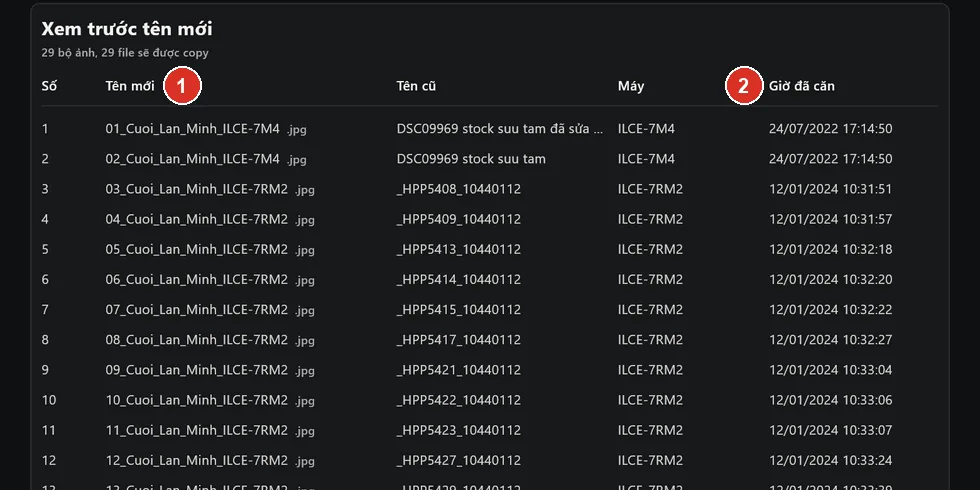
- New name of each photo set, in capture-time order.
- Aligned time after the offsets are applied.
You may see some warnings:
- No capture time: these photos are ordered by file modified time, so their position may be wrong.
- Sidecar files without a photo: a lone .xmp file is not copied.
- Photo sets sharing a name: the app adds a suffix so nothing collides.
Click Start copying. The app shows progress and the time left. When it finishes, it shows how many files were copied and any that failed. Click Open destination folder to see them.
Find the originals with the name mapping file
The app saves shotpik_doi_chieu_ten.csv in the destination folder. It lists the new name, original path, aligned time and camera of every file. When your client picks photos by their new names, open this file in Excel to find the originals.
Frequently asked questions
Is Sort by capture time free?
Yes. Sort by capture time is free for every Shotpik account, including the Free plan. Just download Shotpik Agent and log in.
How do I merge photos from several cameras in time order?
Add one folder per camera to Sort by capture time, fix the clock offsets between cameras, then copy to a new folder with names numbered by capture time.
Two cameras' clocks were out of sync. How do I fix it?
Use Align by photo: pick two photos from the two cameras taken at the same moment, and the app works out the offset. If you know the exact offset, use Type offset.
Does aligning change the capture time inside my photos?
No. Offsets are only used for sorting in the app. The data inside both the originals and the copies stays the same.
Can the app tell apart two photographers using the same camera model?
Yes. The app tells cameras apart by the serial number recorded in the photos. If a photo has no serial number, the app separates cameras by folder, so add one folder per camera and fill in the photographer name.
I forgot to align the clocks and already copied. What now?
Your originals are untouched. Align the clocks, pick a new destination folder and copy again.
Still have a question?
Message Shotpik and we will reply during working hours.