

User guide · 15
How to recover deleted photos from a memory card
Get back deleted photos and videos or a formatted memory card with Shotpik Agent on Windows and macOS. The card is only read, never written. Free.
Updated
Deleted photos by mistake or formatted the wrong card right after a shoot? Do not panic: the photos usually stay on the card until new data overwrites them. The Data recovery tool in Shotpik Agent finds deleted or formatted photos and videos on memory cards, external drives and your computer's internal drive. It runs on Windows and macOS and uses PhotoRec, an open-source recovery tool that ships with the Shotpik Agent installer.
Most important: as soon as you notice photos are missing, stop shooting and do not copy anything to that card or drive until recovery is done. New data can overwrite the photos you want back.
What you need
- A Windows computer, or a Mac with macOS 12 or later.
- Shotpik Agent: download for Windows or download for macOS. See Download and install.
- A Shotpik account to log in to the app. Sign up free at shotpik.com. This tool is free on every plan, including Free.
- A card reader to connect the memory card.
- Another drive with free space for the recovered photos. It must be different from the card or drive you are recovering.
Your data stays untouched
The drive being scanned is only read, never written or erased. Recovered files must go to a different drive. The app will not let you save onto the drive being scanned.
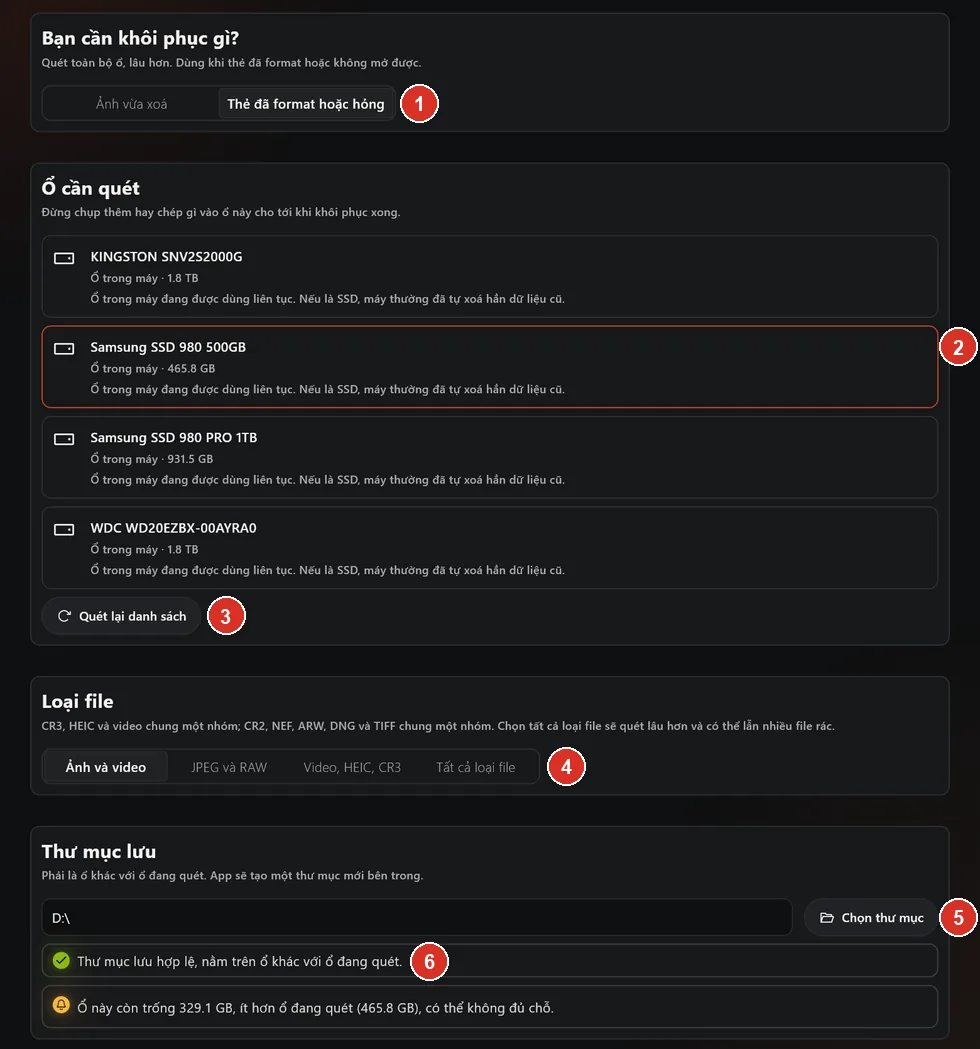
- Scan type: recently deleted or formatted card.
- Selected drive, outlined in orange.
- Scan drives again after plugging in a card.
- File types to look for.
- Choose folder for the recovered files.
- Save location check: whether the location is allowed and has enough space.
Step 1: choose a scan type
Open Shotpik Agent and click Data recovery in the left menu, under Photo tools. Under What do you need to recover?:
- Recently deleted: scans only the free space, which is faster. Use it when the card still opens normally.
- Formatted or damaged card: scans the whole drive, which takes longer. Use it when the card was formatted or will not open.
Step 2: choose the memory card to scan
Pick a drive under Drive to scan: an internal drive, an external drive, or a memory card or removable drive. If the card is not listed, reconnect it and click Scan drives again.
A note on SSDs: TRIM has usually erased deleted data already, so it is hard to get back. Recovery is effectively unavailable on a Mac's internal SSD.
Step 3: choose the file types
Under File types, pick:
- Photos and videos: right for most cases.
- JPEG and RAW: JPEG, PNG, TIFF and RAW files such as CR2, NEF, ARW, DNG, RAF, ORF and RW2. CR3 and HEIC are not included.
- Video, HEIC, CR3: videos, HEIC photos and CR3 files.
- All file types: takes longer and may include many junk files.
Canon R-series cameras save RAW as CR3, and iPhones save photos as HEIC. If you use these, choose Photos and videos or Video, HEIC, CR3.
Step 4: choose where to save the recovered photos
Click Choose folder under Destination folder. It must be on a different drive from the one being scanned:
- Not another partition of the same physical drive.
- Not a network location or NAS. Choose a drive connected directly to this computer.
The app creates a new folder inside it. If the destination has less free space than the size of the scanned drive, the app warns you.
Step 5: start recovery
- Click Start recovery.
- Your computer asks for admin permission because the app needs to read the drive directly. Allow it to continue.
- The app shows the number of files found, the elapsed time and the scan pass. On a large drive this can take several hours.
You can click Stop at any time. Files found so far are kept.
Step 6: check the recovered photos
Click Open folder to see the results. To scan another drive, click Recover again.
- Recovered files have names like f0012345.jpg. Original names and folders cannot be kept.
- Some files may be partly damaged. Open and check them before you use or deliver them.
- Shotpik Agent does not delete anything in the output folder.
Frequently asked questions
Is Data recovery free?
Yes. Data recovery is free for every Shotpik account, including the Free plan. Just download Shotpik Agent and log in.
Can I recover photos from a formatted memory card?
Usually yes, if nothing was shot or copied to the card afterwards. Choose Formatted or damaged card to scan the whole card.
Should I choose Recently deleted or Formatted or damaged card?
If the card still opens and you only deleted a few photos, choose Recently deleted. If it was formatted or shows an error, choose Formatted or damaged card.
Why can I not save onto the card being scanned?
Writing to the card being scanned would overwrite the very photos you are trying to save. That is why the app requires a different drive.
Will recovery always get every photo back?
Not always. It depends on how much was written to the card after the photos were deleted. The sooner you stop using the card, the more you can get back.
Why do recovered files have strange names?
PhotoRec finds photos from the raw data on the drive. It cannot read the original names and folders, so it gives each file a new name like f0012345.jpg.
Still have a question?
Message Shotpik and we will reply during working hours.