

User guide · 10
How to filter your client's picked photos by file name
Paste the names your client picked and Shotpik Agent finds them in your originals and copies them to a new folder, RAW and JPG included. Free.
Updated
Your client sends back a list of 200 photo names, and you have to dig through the originals folder name by name to copy them out for editing. It is slow and easy to miss one. With the Filter by name tool in Shotpik Agent, you paste the list, pick the originals folder, click one button, and the picked files are copied to a new folder.
The tool only reads your originals and copies them to a new folder. Originals are never deleted, renamed or overwritten.
What you need
- A Windows computer, or a Mac with macOS 12 or later.
- Shotpik Agent: download for Windows or download for macOS. See Download and install.
- A Shotpik account to log in to the app. Sign up free at shotpik.com. This tool is free on every plan, including Free.
- Your originals folder and the list of names your client picked.
Step 1: get the list of picked photos
If your client picked on Shotpik: open the album, go to List, pick the hearted tab and click Copy. See Manage an album for details.
A list sent by message, an Excel file or a screenshot works too. The app can read all of them.
Step 2: open Filter by name
Open Shotpik Agent and click Filter by name in the left menu, under Photo tools.
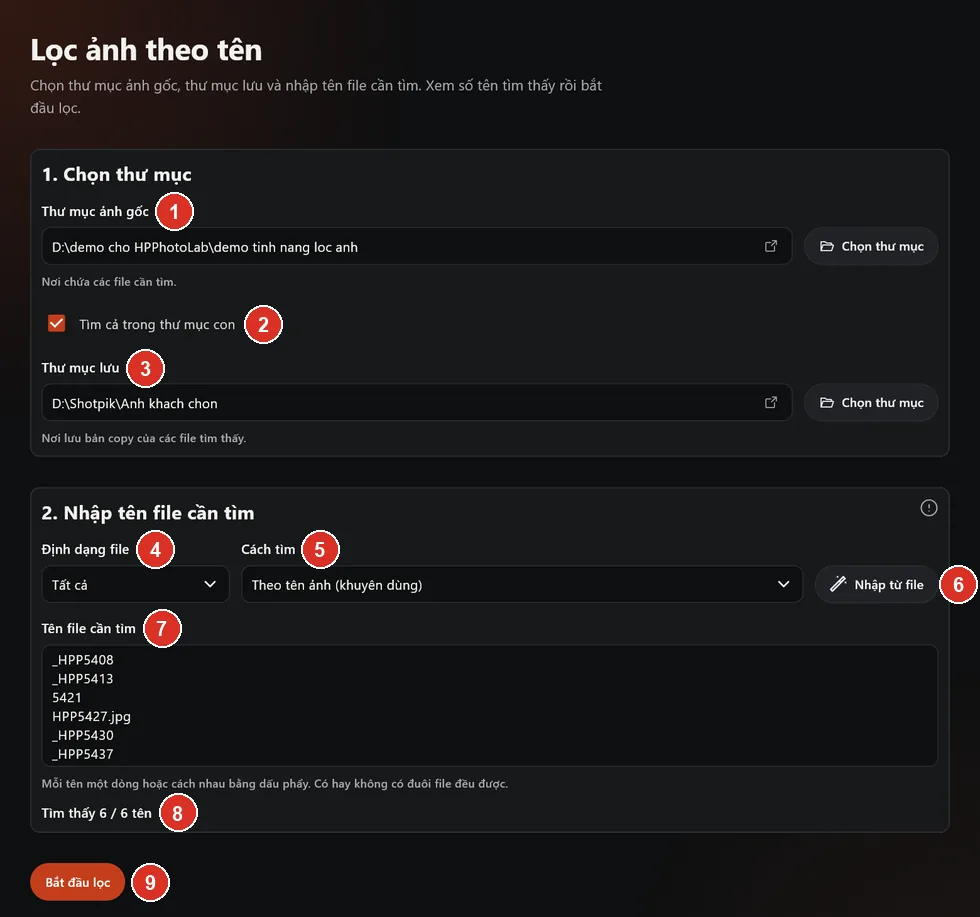
- Source folder: where your originals are.
- Also search subfolders: turn on when photos sit in several subfolders.
- Destination folder: where copies of the found files go.
- File format: take every file type or only one.
- Match by: how names are compared.
- Import from file: import the list from a screenshot, TXT, CSV or Excel file.
- File names to find: the names your client picked.
- Found X of Y names: how many names match a file in the folder, before you filter.
- Start filtering: start finding and copying.
Step 3: choose the originals and the output folder
- Under Source folder, click Choose folder and pick the folder with your originals.
- If photos sit in several subfolders, turn on Also search subfolders.
- Under Destination folder, click Choose folder and pick where the client's picks go. It must be different from the source folder and not inside it.
- Under File format, choose All or a single type. For example, choose CR3 to collect only the RAW files you will edit.
Step 4: paste the list of names
Paste the list into File names to find. Put one name per line or separate names with commas. The extension (.jpg, .CR2) is optional.
If the list is in a file, click Import from file:
- Photos of a list: a screenshot of the name list. The images are sent to a server to read the text; reading works best with a sharp image and black text on white. If it takes long, click Stop and the names read so far are kept.
- TXT file: one name per line.
- CSV file and Excel file: names in the first column.
Under Match by, keep By photo name (recommended). It compares each group of letters and digits, so names typed loosely still match:
- If the client types 1234, it matches IMG_1234.CR2 but not IMG_11234.
- If the client types dsc12, it still matches DSC_0012.
For stricter matching, choose Contains, Starts with, Ends with or Exact match.
Below the list the app shows Found X of Y names. If X is smaller than Y, some names match no file: check them or change the match mode before filtering.
Step 5: click Start filtering
- Click Start filtering. To stop midway, click Stop.
- If the destination folder already has a file with the same name: an identical file is skipped, and a different file is saved under another name. Nothing is ever overwritten.
- When it finishes, the app shows right away how many files were found, copied, not found, skipped and failed, with the reason for each failed file. If you clicked Stop, the result says Stopped.
- Click Open destination folder to see the copied files.
Some names not found? The app lists them. Click Export names not found to save them as a TXT file and send it to your client to check.
Frequently asked questions
Is Filter by name free?
Yes. Filter by name is free for every Shotpik account, including the Free plan. Just download Shotpik Agent and log in.
How do I find picked photos when the client leaves out zeros or the IMG prefix?
Keep Match by on By photo name (recommended). The app matches groups of digits, so 12 matches DSC_0012.
How do I get both the RAW and the JPG of each picked photo?
Set File format to All. Each picked name brings both the RAW and the JPG with that name.
My client sent the list as a screenshot. What do I do?
Click Import from file, choose Photos of a list and pick the screenshot. Check the names in the box before filtering and fix any the app misread.
Are files with the same name in the output folder overwritten?
No. The app only skips them or saves under a new name. It never overwrites.
Still have a question?
Message Shotpik and we will reply during working hours.