

User guide · 11
Connected apps: Pikalbum and Fotoreto
Pikalbum lays out printed albums from your client's picks, Fotoreto saves edited photos to Shotpik. How to connect, what each app may see and how to disconnect.
Updated
Shotpik works with two apps: Pikalbum lays out a printed album from exactly the photos your client picked, and Fotoreto puts freshly edited photos on Shotpik for delivery. No downloading and sorting by hand.
The screenshots show the Vietnamese interface; the buttons are in the same places in English.
Pikalbum: printed albums from your client's picks
Pikalbum is album layout software that runs in the browser. Once connected, Pikalbum can read your Shotpik albums and take the photos your client hearted straight into the layout.
Connect the first time
- Sign in to pikalbum.com with the same email as your Shotpik account. With a different email the connection fails.
- Go to My albums and press the Connect Shotpik card.
- A Shotpik page opens, showing the account you are signed in with and what Pikalbum may see. Press Allow.

Pikalbum can only see your album list, the photos in your albums (originals and edited copies), the photos your client picked and their comments. It cannot change or delete anything, and it never learns your Shotpik password.
Disconnect
On Shotpik, open Settings, find Connected apps and press Disconnect. You can also disconnect from Pikalbum. To use it again, connect again as the first time.

Let your client approve the layout
When the layout is done, Pikalbum saves the album pages to a folder on your computer (an album synced with Shotpik Agent) and opens the Shotpik album form, already filled in. Send that album to your client as usual:
- A heart on a page means the page is approved.
- A comment on a page means it needs a change.
- When done, your client presses Done.
Fotoreto: save edited photos to Shotpik
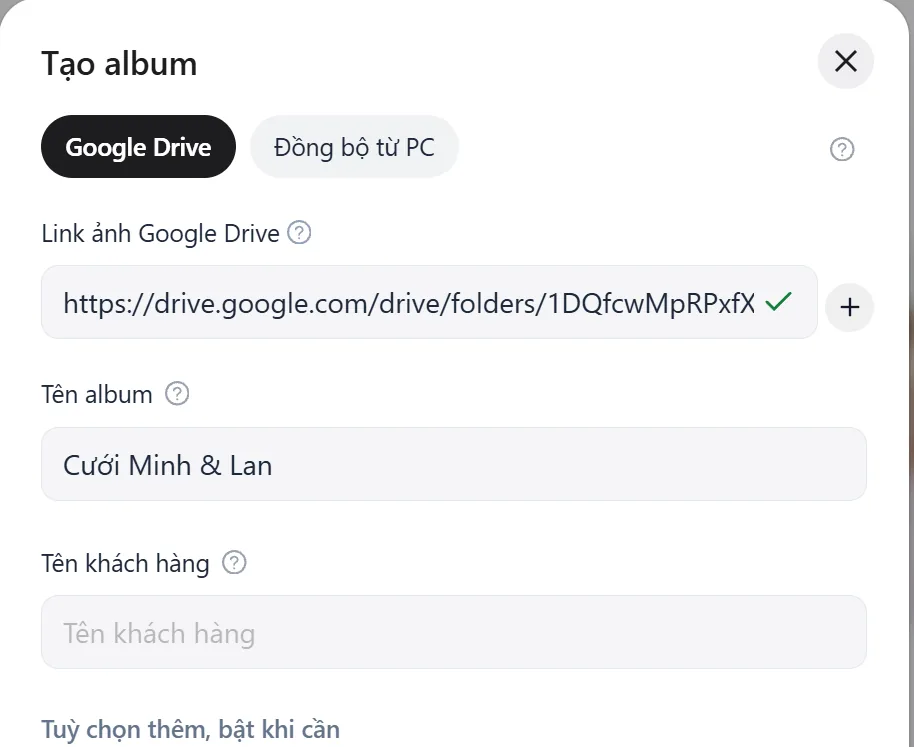
Fotoreto is photo editing software for your computer. Its Save to Shotpik button saves the edited photos to your Google Drive (or to a folder on your computer for albums synced from your PC), then opens Shotpik with everything filled in.
A new album
The Create album form opens with the Drive folder link and the album name filled in. Check the settings, then create the album.
Edited photos for an existing album
The Add edited photos box opens with the folder filled in and the line "Fotoreto has filled in the folder of edited photos". Press Save and show to clients. To prepare first and show later, turn off Show to clients now before saving. If the album already has edited photos, the new folder is added and the others stay as they are.
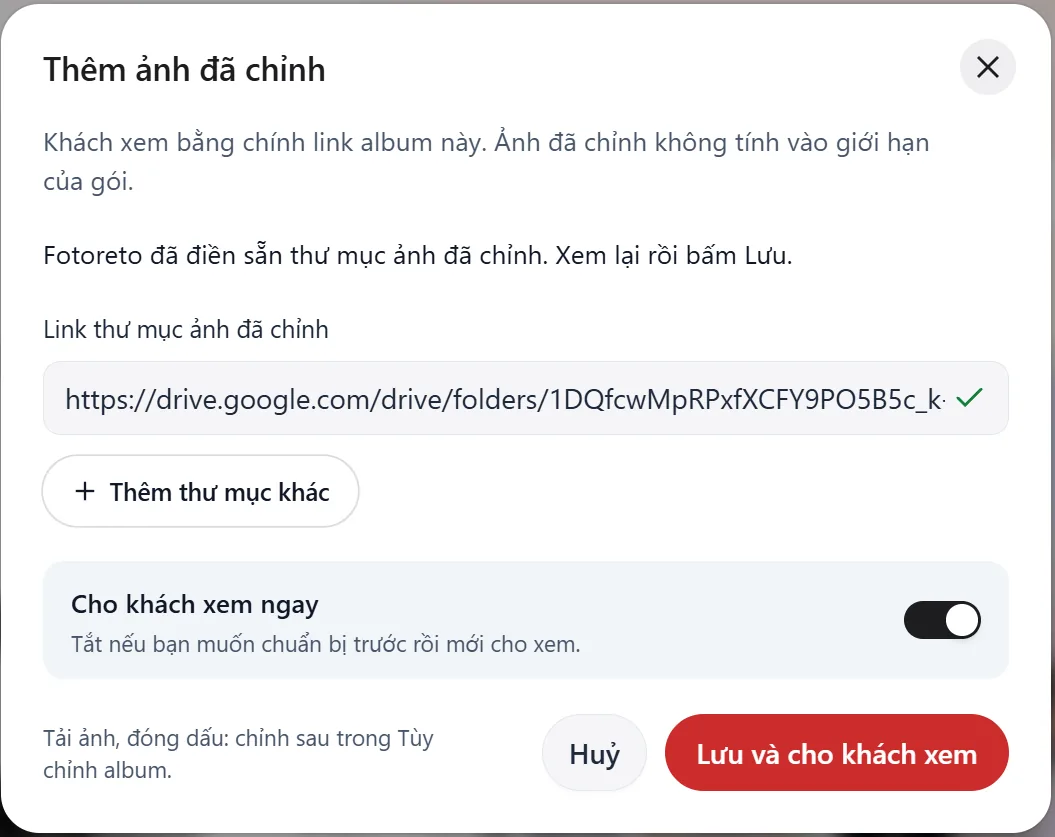
Your client sees the edited photos with the same album link. Edited photos do not count toward your plan's photo limit.
Good to know
- Shotpik never saves on its own. You always press the last button.
- Not signed in to Shotpik? Sign in; what Fotoreto filled in is kept.
- Shotpik only accepts Google Drive folder links. Computer folder paths are only for albums synced from your PC.
Still have a question?
Message Shotpik and we will reply during working hours.