

User guide · 14
How to download a whole Google Drive folder without ZIP files
Download every file in a Google Drive folder, keep the folder structure, resume after a lost connection and skip unzipping. Free.
Updated
A client or colleague sends you a Google Drive link with hundreds of photos. Downloading in the browser makes Drive pack them into several ZIP files that often fail midway, start over, and still need unzipping. The Download from Drive tool in Shotpik Agent downloads each file one by one, keeps the folder structure, resumes after a lost connection and needs no unzipping.
Files already on your computer are never changed. The app does not delete or overwrite anything.
What you need
- A Windows computer, or a Mac with macOS 12 or later.
- Shotpik Agent: download for Windows or download for macOS. See Download and install.
- A Shotpik account to log in to the app. Sign up free at shotpik.com. This tool is free on every plan, including Free.
- A Google Drive folder or file link shared with Anyone with the link. No Google sign-in is needed.
Step 1: paste the Drive link and scan it
- Open Shotpik Agent and click Download from Drive in the left menu, under Photo tools.
- Paste the link into Google Drive link. A folder link or a link to one file both work.
- Click Scan link. Click Cancel scan to give up.
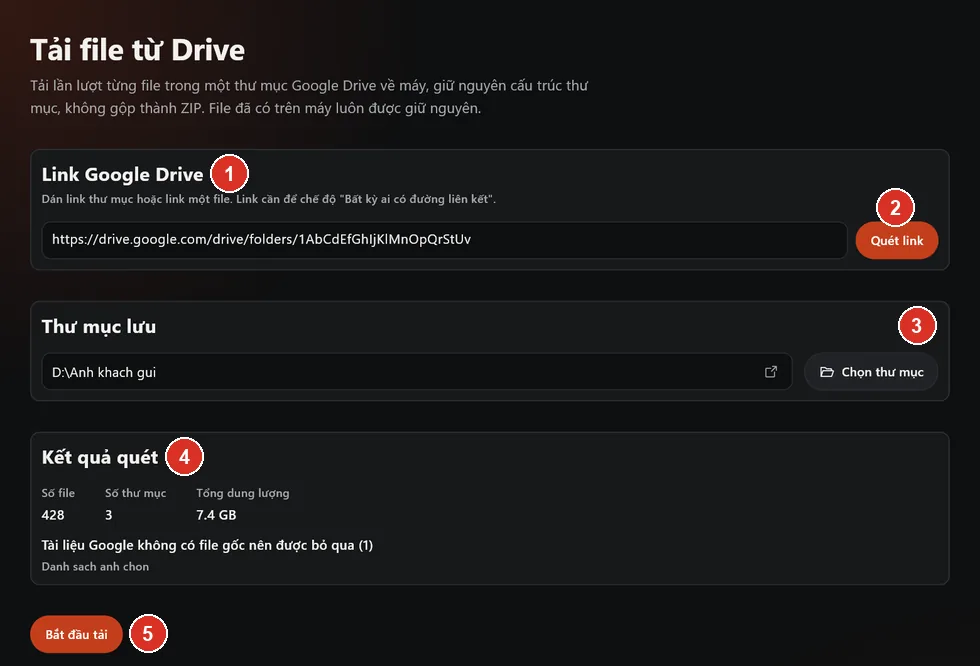
- Google Drive link: paste a folder or file link.
- Scan link: see what the link holds before downloading.
- Choose folder to save the files.
- Scan result: files, folders, total size and skipped items.
- Start download.
After the scan, the app shows the number of files and folders and the total size. Google documents such as Docs, Sheets and Slides have no original file and are skipped. Broken or restricted shortcuts are skipped too.
Step 2: choose where to save and start
- Under Destination folder, click Choose folder. If the drive does not have enough space, the app tells you before downloading. Start download only lights up once the link is scanned and a folder is chosen; the app says which step is missing.
- Click Start download.
- While downloading, the app shows progress and the time left. You can click Pause and then Resume, or Stop to end it.
The app checks each file's size and md5 checksum against Drive. A file that comes down wrong is not saved.
If the destination already has a file with the same name:
- An identical file is skipped and not downloaded again.
- A different file is saved under another name, and the existing file stays as it is.
Step 3: check and retry failed files
The app shows how many files were saved, how many were already there and skipped, how many were saved under a new name, and how many failed. Click Open folder to see the files. If some failed, click Retry failed files.
Stopped midway or lost your connection? What was downloaded is kept. Scan the same link again and pick the same folder, and the app only downloads what is missing.
How to fix common errors
- Cannot view this content: the link is not shared. Share it with Anyone with the link and scan again.
- File exceeded Google's download limit: the file was downloaded too many times today. Try again in a few hours.
- Google is limiting downloads: try again in a few minutes.
- Disk is full: free up space, then click Retry failed files.
Frequently asked questions
Is Download from Drive free?
Yes. Download from Drive is free for every Shotpik account, including the Free plan. Just download Shotpik Agent and log in.
How do I download a whole Google Drive folder without it being split into ZIP files?
Use Download from Drive in Shotpik Agent. The app downloads each file to your computer and keeps the folder structure, with no ZIP files.
My Drive folder download failed midway. What now?
Scan the same link again and pick the same folder. The app keeps what was downloaded and only fetches the missing files.
Do I need to sign in to Google?
No. The link only needs to be shared with Anyone with the link.
Will downloading the same link again create duplicates?
No. Files that are already there and identical are skipped.
Why are Google Docs not downloaded?
Google documents only exist on Drive and have no original file to download. Download them in the browser by exporting to Word or PDF.
Still have a question?
Message Shotpik and we will reply during working hours.