

User guide · 04
Manage an album
Update albums, find faces, download, filter files, view lists, remove interactions, deliver edits and handle several choosers.
Updated
The album page
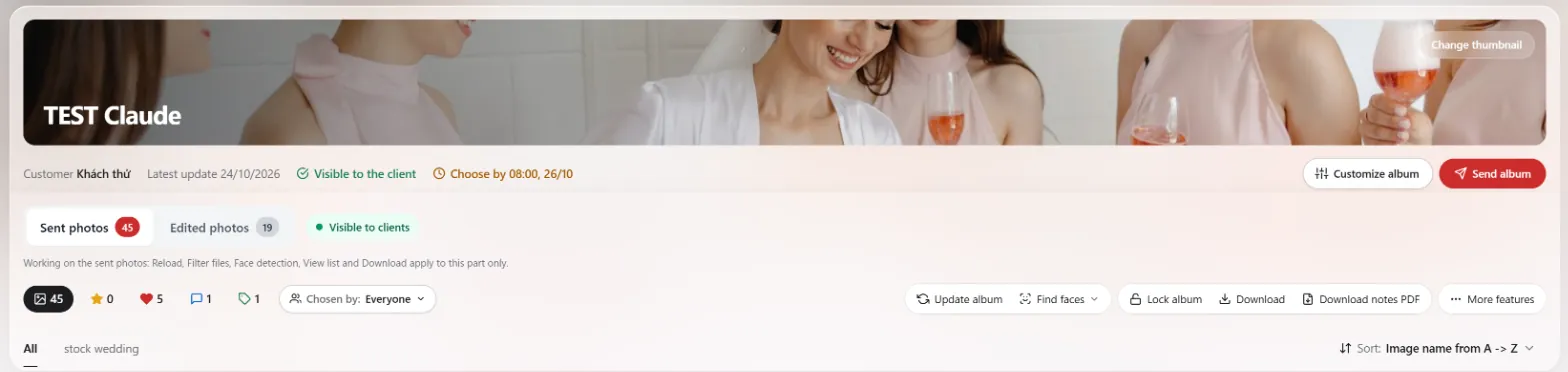
- Change thumbnail: the small button on the cover.
- Info line: client name, last update, "Visible to the client", and the choosing deadline if set.
- Customize album: edit the name, folders and every setting from Create an album.
- Counters: all photos, your recommendations (yellow star), client hearts, comments, tags. Click a number to show only those photos.
- Folder tabs: All, then each folder.
- Sent photos / Edited photos: the two parts of the album once you deliver edits.
Toolbar
| Button | What it does |
|---|---|
| Update album | Added or removed photos in the Drive folder? Press this to reload the list. Client hearts and comments are kept. |
| Find faces | Turn on face detection and find every photo of one person (below). |
| Lock album | Locks the album. Locked albums appear under the Locked filter. Press again to unlock. |
| Download | Download photos in the quality and scope you choose. |
| Download notes PDF | One PDF with every photo that has client comments or brush notes, ready for your retoucher. |
| More features | Filter, View List, Remove interactions, Activity, Website. |
Looking at one photo
Click a photo to see it large, with the file name, client comments and tags.
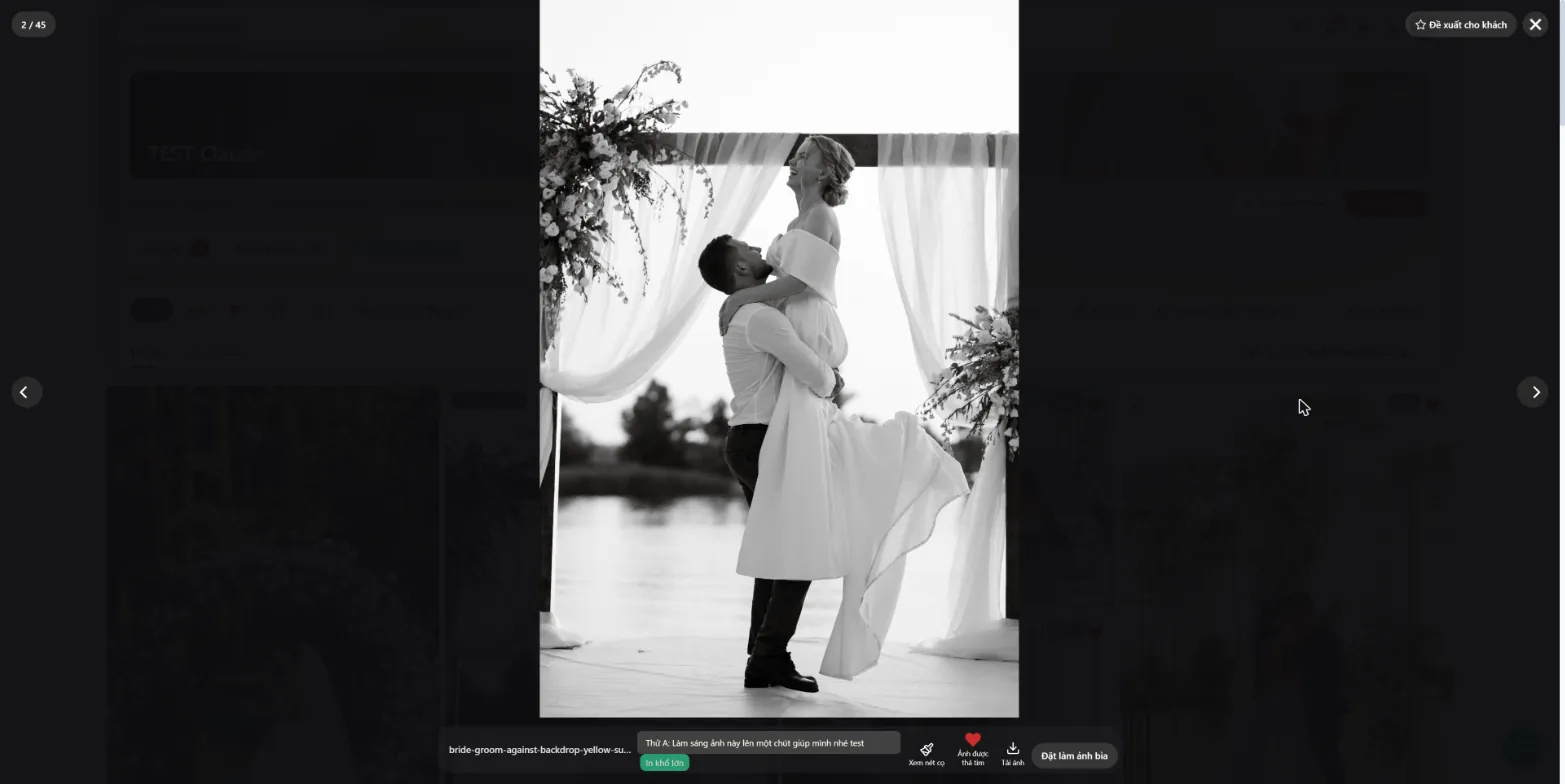

- Recommend to client: a yellow star marks a photo you suggest. Clients can download the "Recommended by you" group.
- Set as cover, Download, Heart.
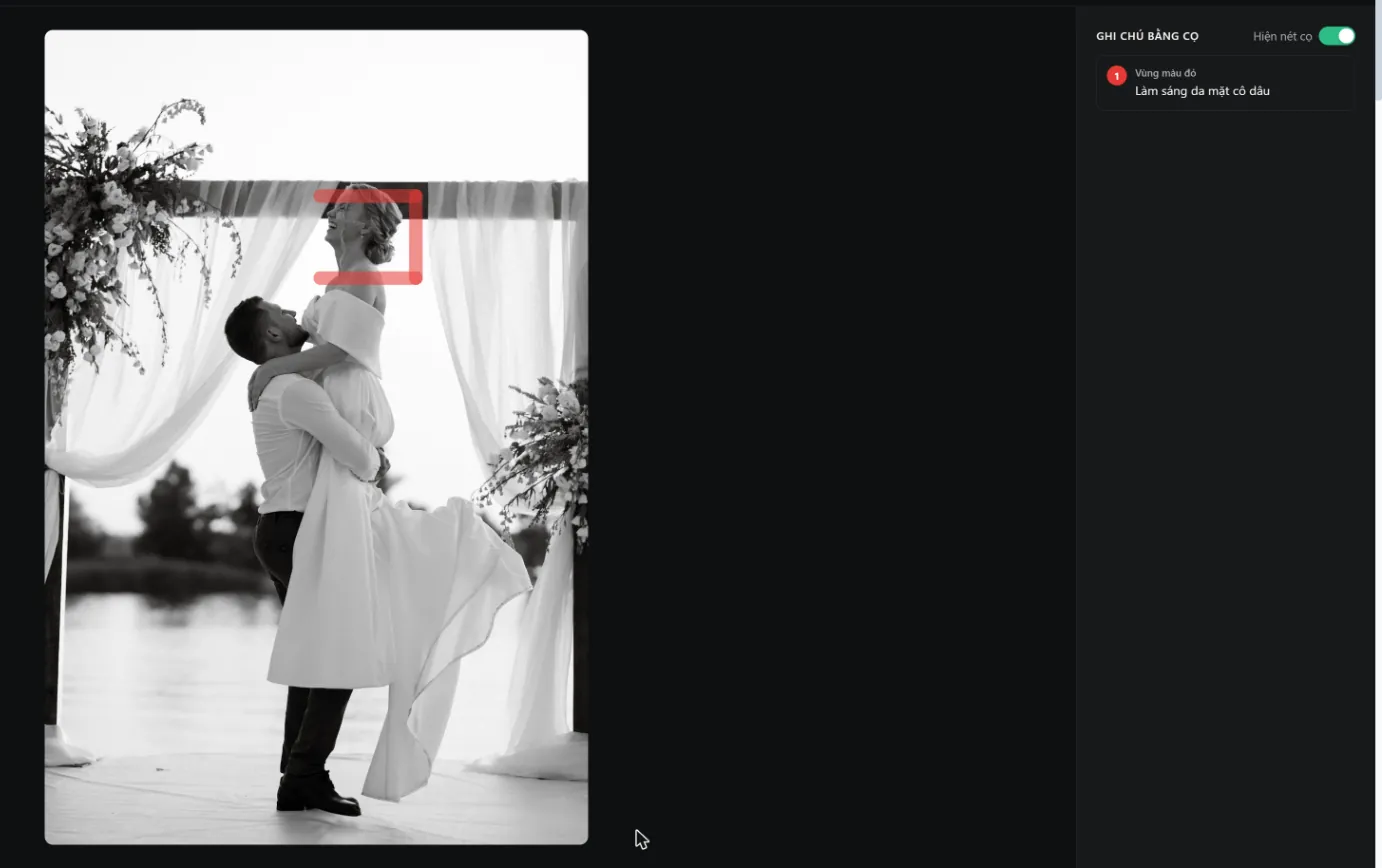
- View brush notes: see the areas the client circled and their note for each area.
Find faces

- Press Find faces and open the face detection settings to turn it on.
- Wait until Shotpik has processed the photos.
- Search by face to list every photo of that person. Clients have a similar Find face button.
This feature comes with the higher plans (see Account, plans and rewards).
Download
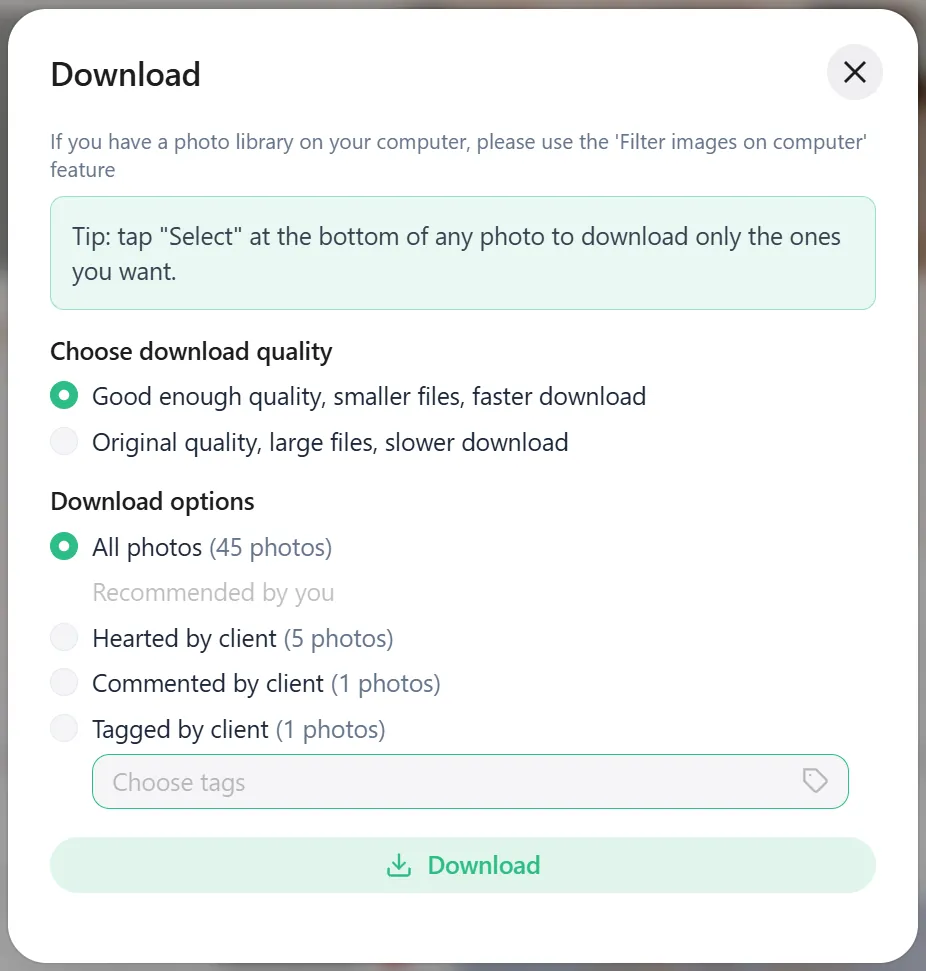
- Quality: good enough (small files, fast) or original (large files, slower).
- Scope: all photos, your recommendations, hearted, commented, or tagged with a specific tag.
- Only a few photos? Tap Select at the bottom of each photo, then download from the bar that appears.
More features
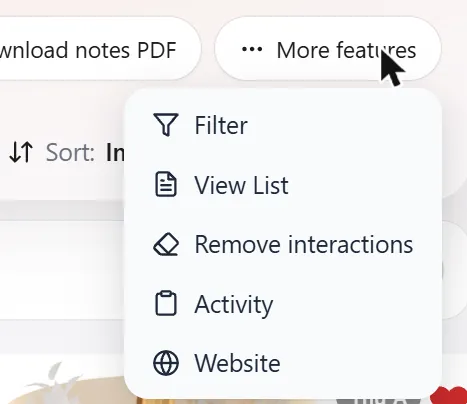
Filter
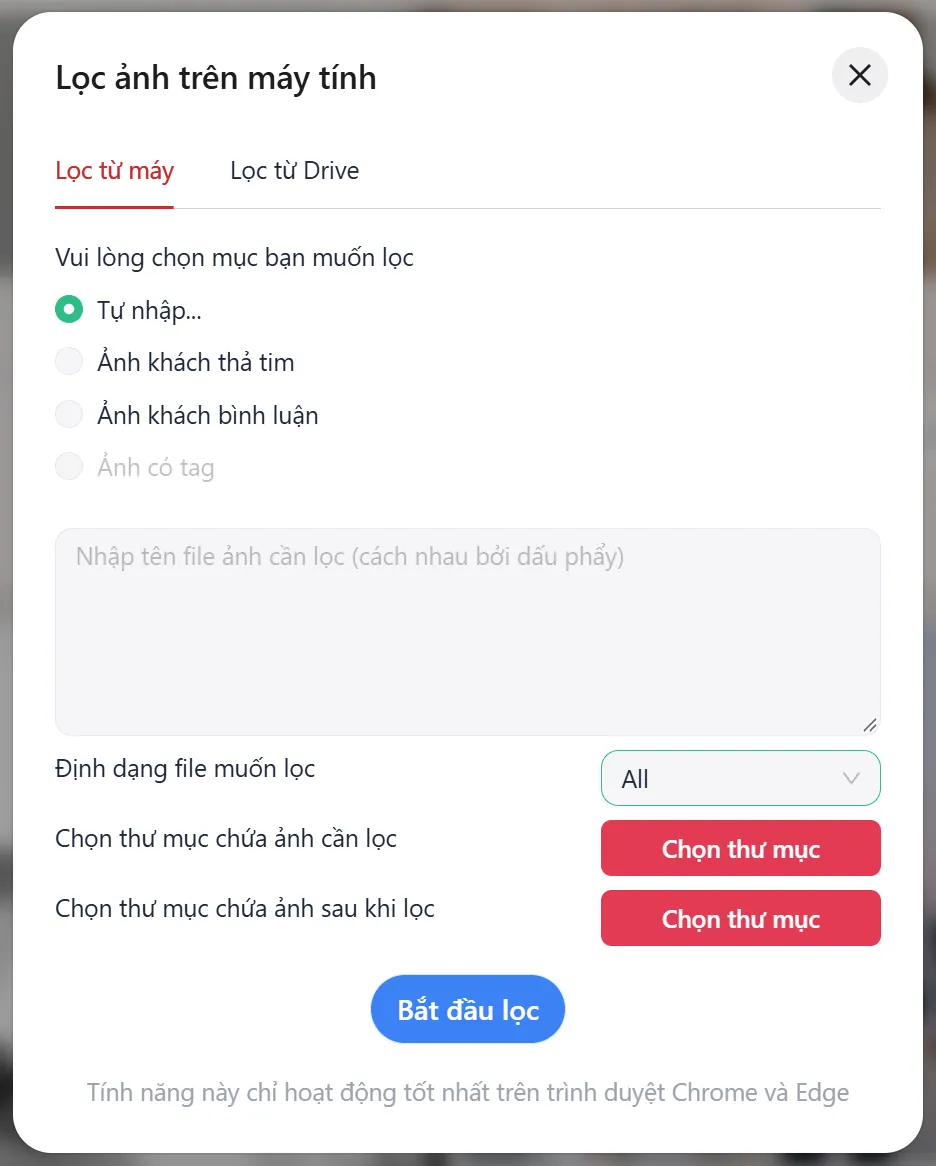
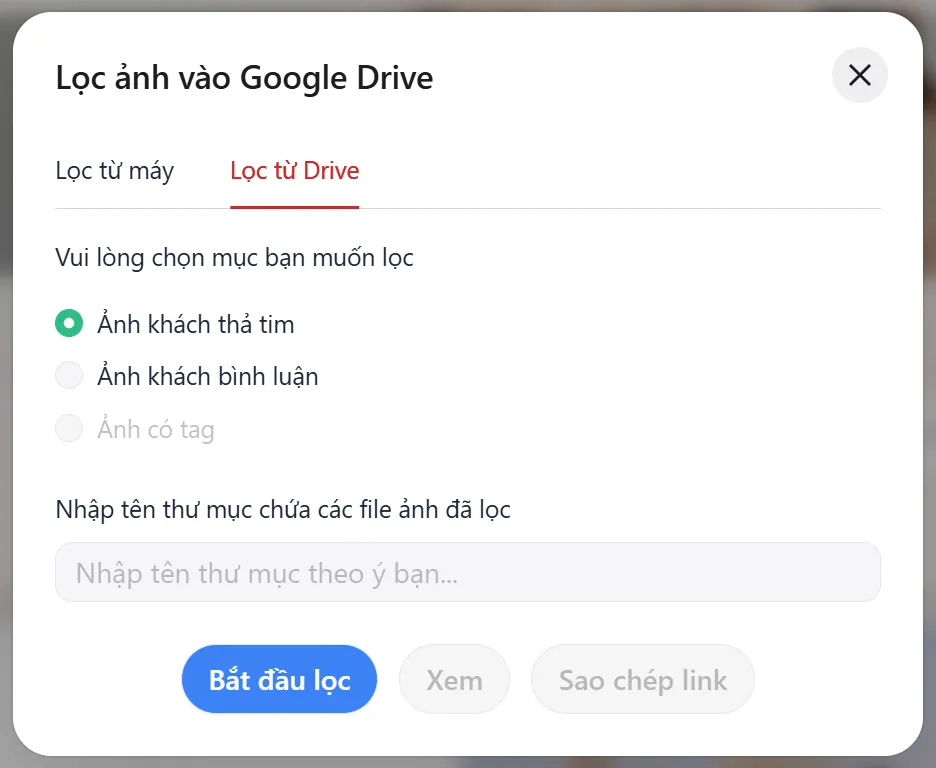
Pull the chosen photos into a folder without hunting for file names by hand.
- From your computer: choose the group (type file names yourself, hearted, commented, tagged), the file type (for example only RAW), the source folder on your computer and the target folder, then start. Use Chrome or Edge.
- From Drive: Shotpik copies the chosen photos into a new Google Drive folder with the name you give. Then open it or copy its link.
View List
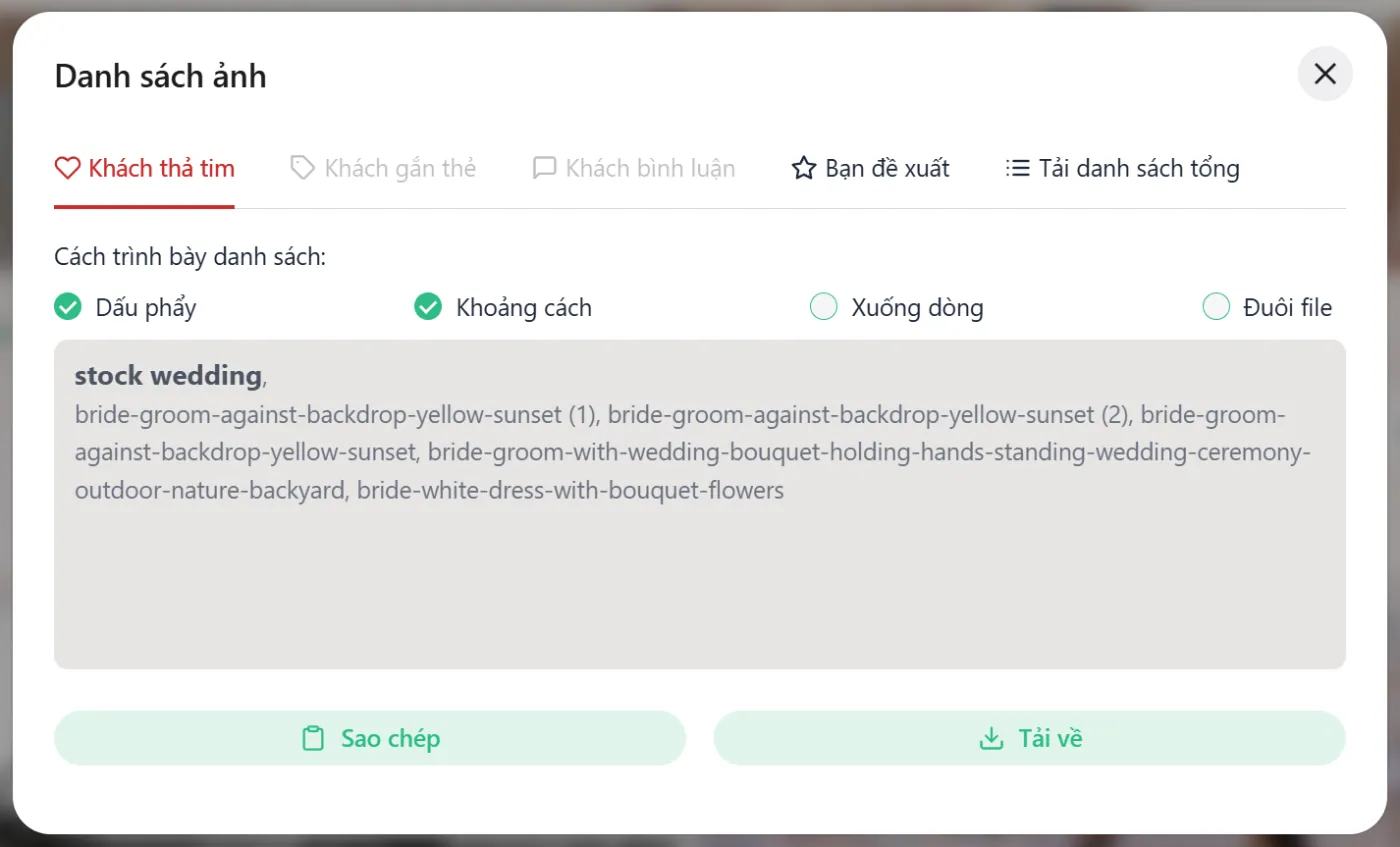
File names per tab: hearted, tagged, commented, recommended by you, or the full list. Choose the format (commas, spaces, new lines, with or without file extensions), then copy or download. Paste straight into Lightroom or Bridge to filter.
Remove interactions
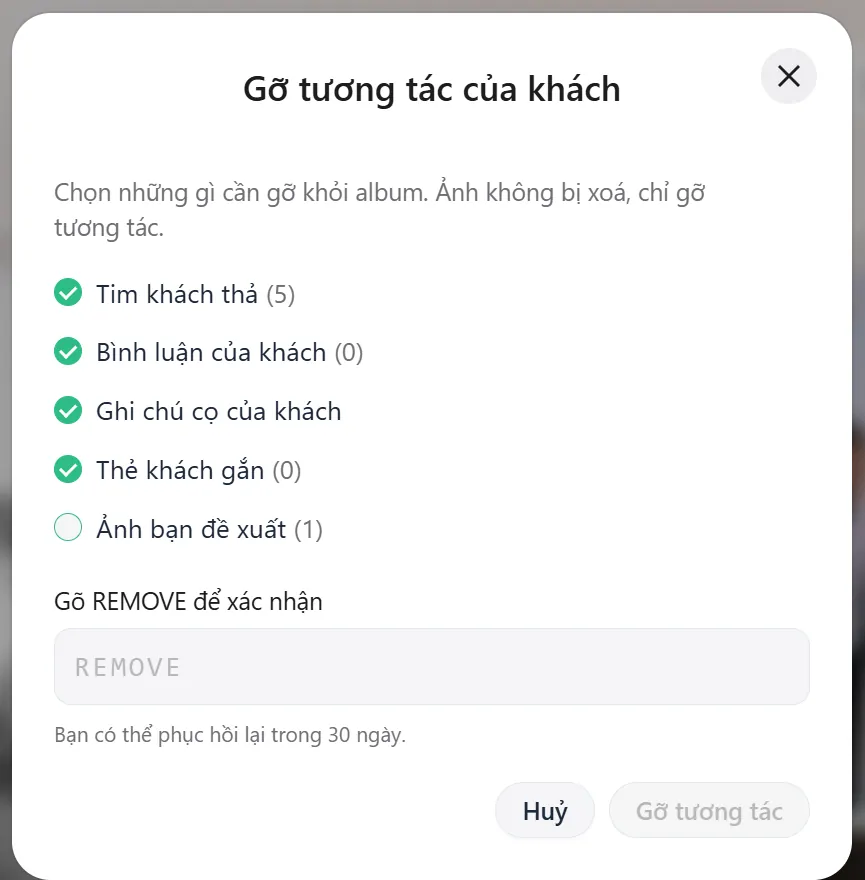
Clears client hearts, comments, brush notes and tags (and your recommendations if ticked) so the client can start again. Photos are not deleted. Type REMOVE to confirm; you can restore within 30 days.
Activity
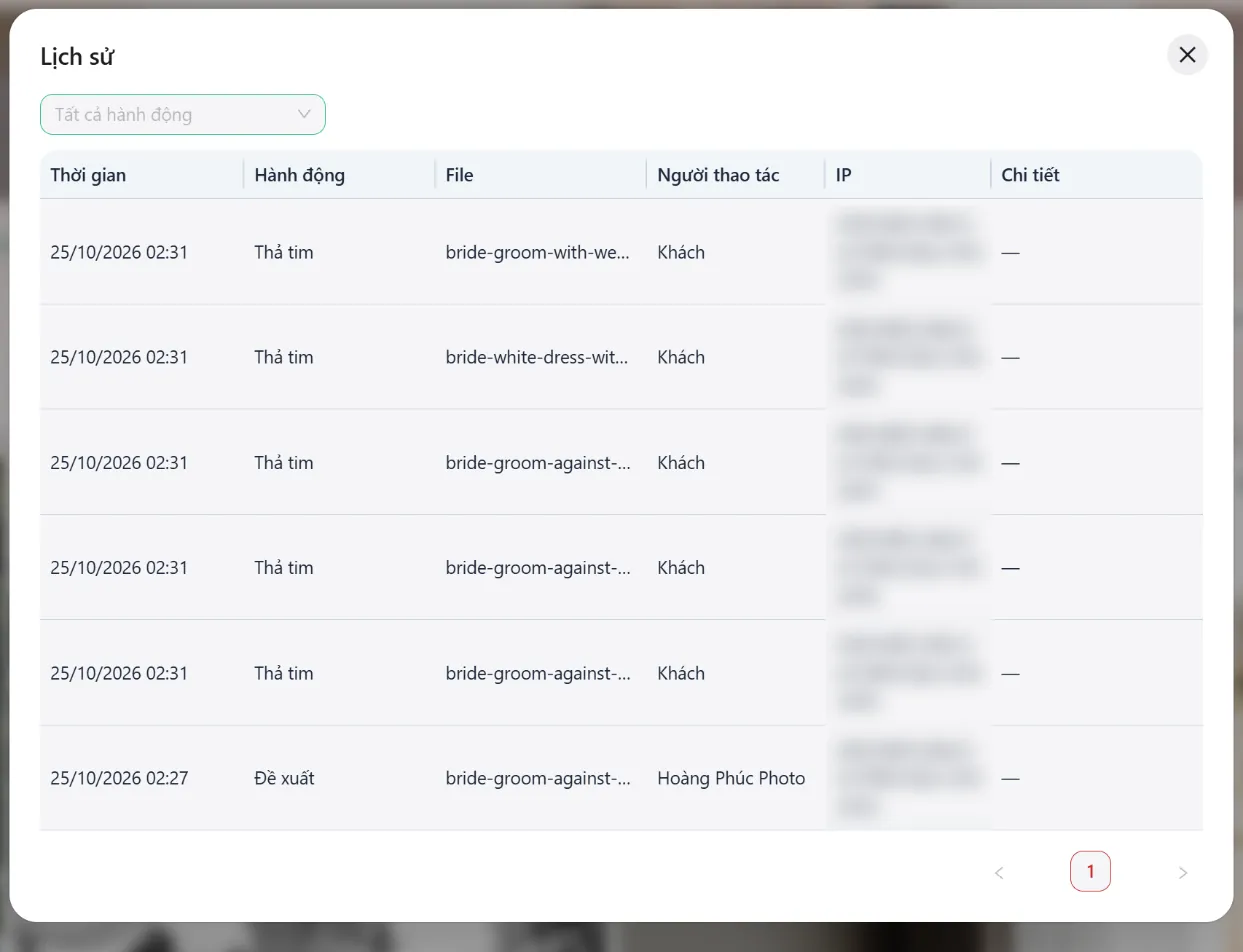
A log of every action on the album: who hearted, commented or pressed Done, and when. Useful when a client asks why a heart disappeared.
Website
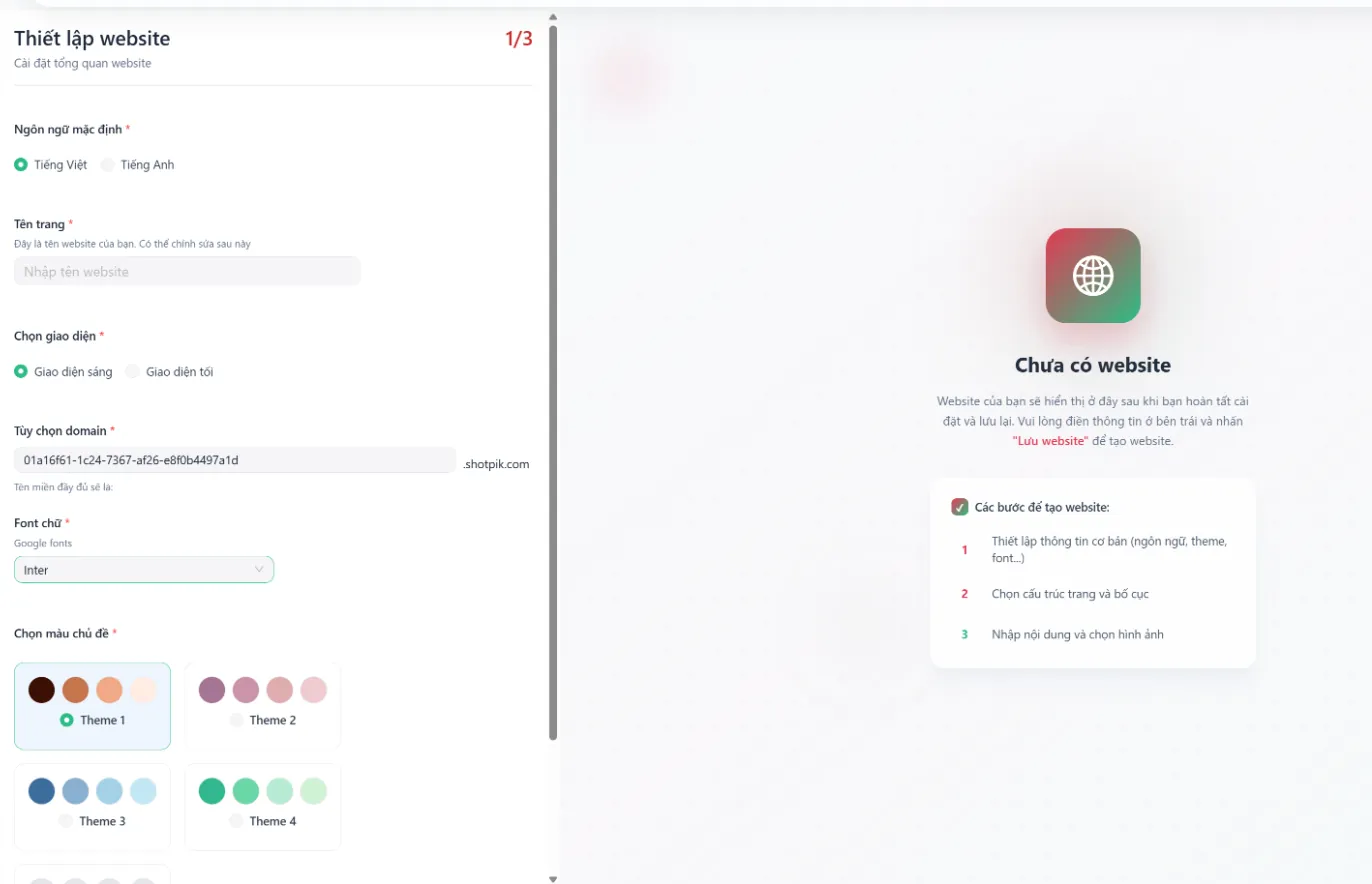
Build a web page just for this album in 3 steps: basics (language, page name, light or dark theme, address, font, colours), layout, then text and pictures. The number of album websites per month depends on your plan.
Deliver edited photos
Deliver the edits in the same album; the client keeps the same link.
- Press Customize album and scroll to the edited photos part.
- Paste the Google Drive folder with the edited photos (several folders are fine).
- Turn on showing edited photos to clients when ready. Options: allow download, add watermark.
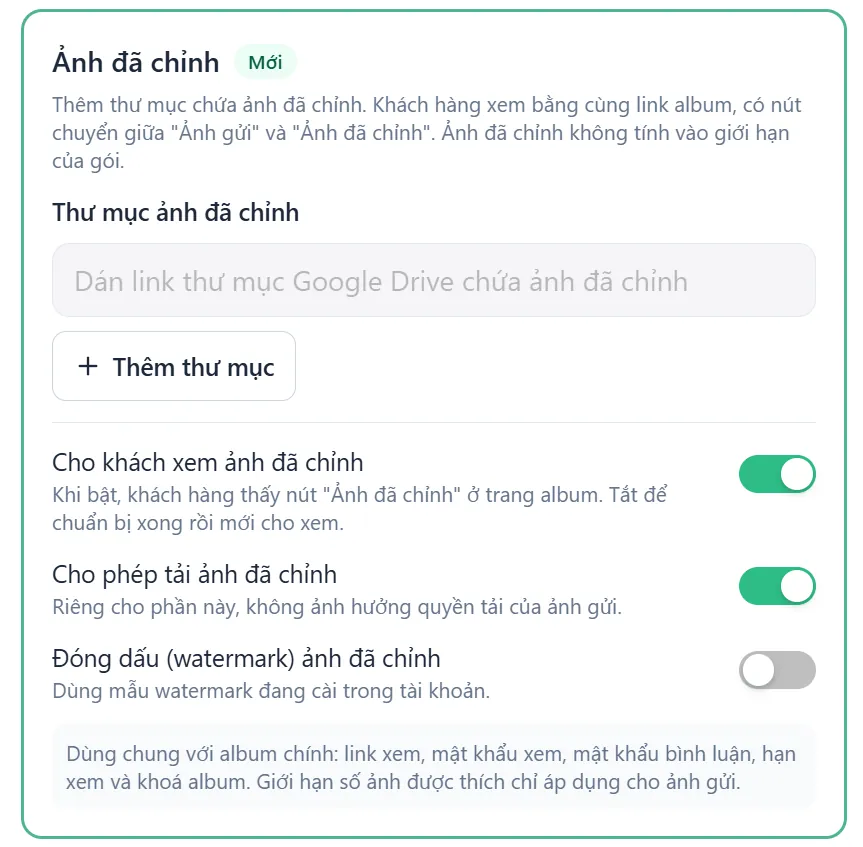
The album then has two parts, Sent photos and Edited photos. Edited photos do not count against your plan limit. If an edited photo has the same name as the original (for example C-hoang-hon-2.jpg and C-hoang-hon-2-edited.jpg), clients get a before/after compare button.

Several people choosing
With "Several people choose" on, each photo shows the names of the people who hearted it.
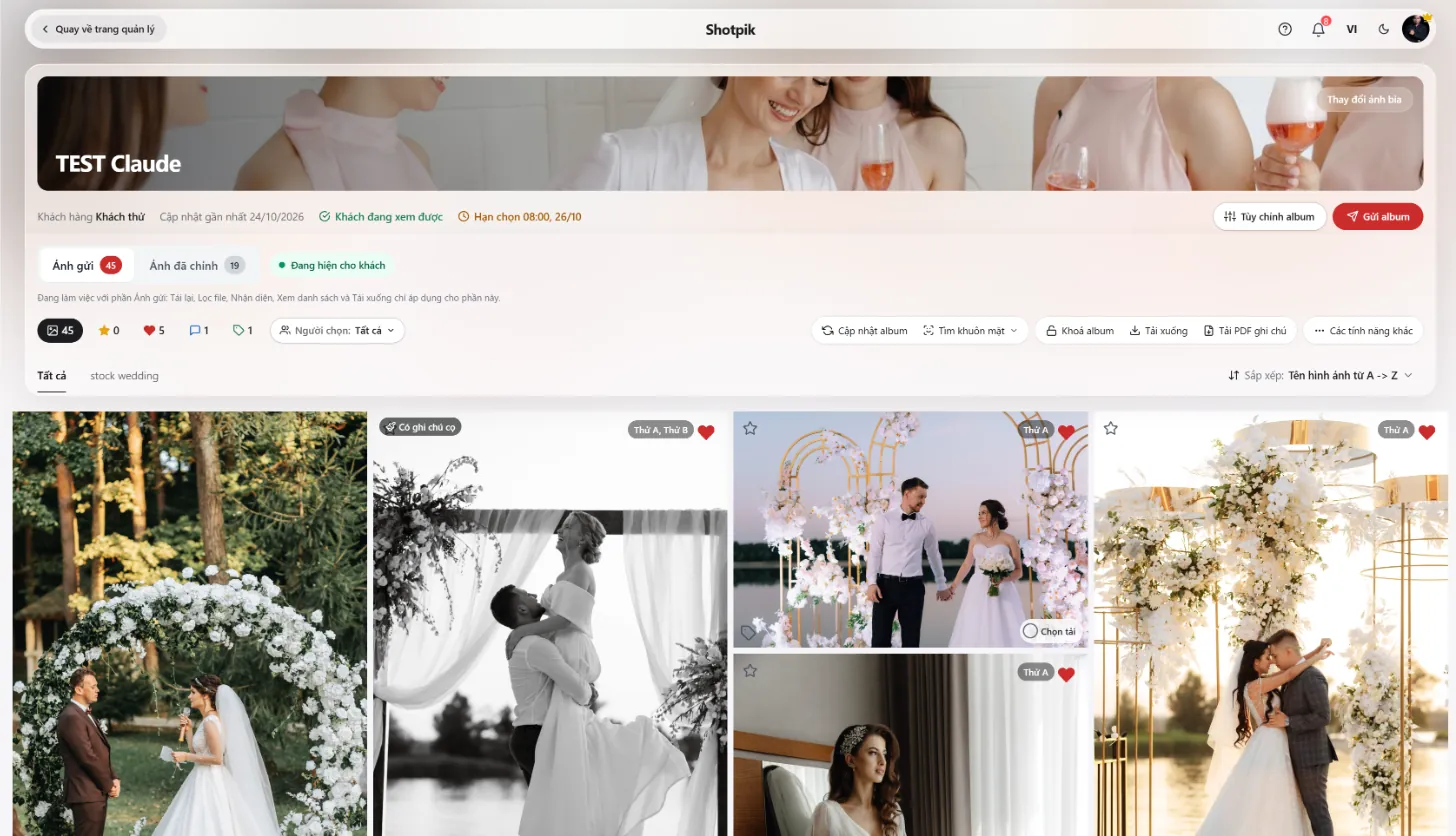
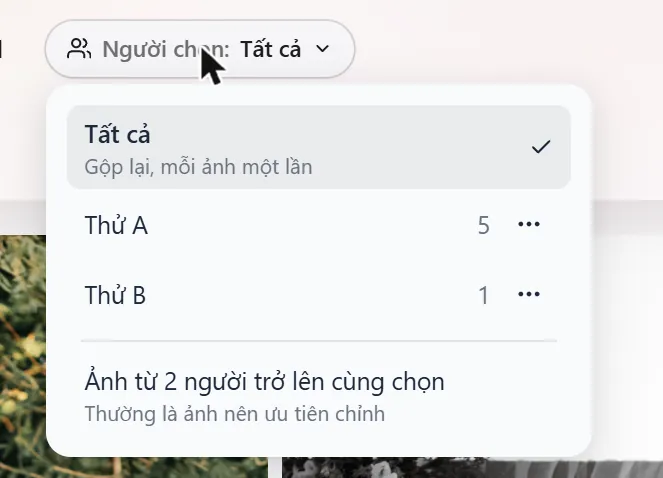
- Chosen by: show one person's photos, or photos chosen by two people or more, to see what the whole family likes.
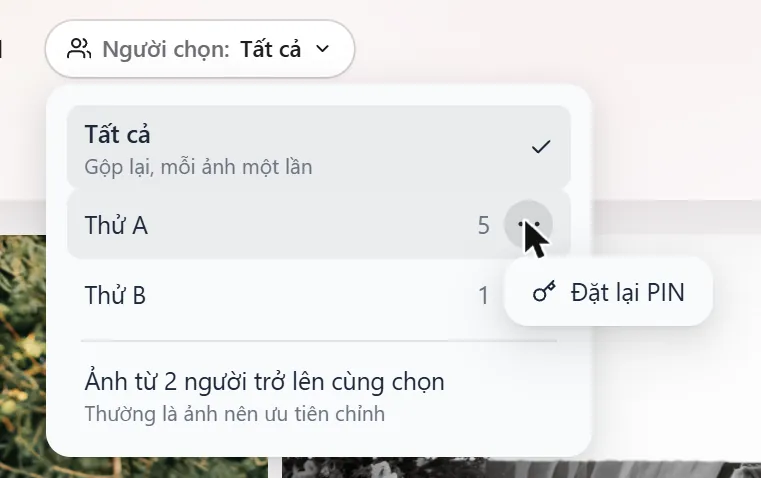
- Reset PIN: if a client forgets their PIN, reset it here. Their hearts are kept.
After the client presses Done
You get a notification and the album stops taking choices. If the client wants to choose more, press the reopen button on the album page.
Still have a question?
Message Shotpik and we will reply during working hours.