

User guide · 11
How to cull blurry, duplicate and closed-eye photos automatically
Automatically find blurred shots, burst duplicates, closed eyes and badly exposed photos with Shotpik Agent. Works with JPEG and RAW. Free.
Updated
After a shoot, the folder usually holds hundreds of blurred frames, near-identical burst shots and photos where someone blinked. Going through them by hand takes hours. With the Photo culling tool in Shotpik Agent, the app flags these for you. You review, then copy the good photos to a new folder for your client to pick from.
The tool only reads photos and copies them to a new folder. It never deletes, renames or writes next to your originals.
What the app finds
- Blurred photos: out of focus or camera shake.
- Duplicates: near-identical frames in a burst. The app keeps the best one.
- Closed eyes: someone may have their eyes closed.
- Over or underexposed photos.
The app reads both JPEG and RAW. For RAW files it reads the preview your camera stored inside the file, so culling is fast and the whole file is not decoded.
What you need
- A Windows computer, or a Mac with macOS 12 or later.
- Shotpik Agent: download for Windows or download for macOS. See Download and install.
- A Shotpik account to log in to the app. Sign up free at shotpik.com. This tool is free on every plan, including Free.
- The folder from your shoot, JPEG or RAW.
Step 1: choose the folder and start
- Open Shotpik Agent and click Photo culling in the left menu, under Photo tools.
- Click Choose folder and pick your photo folder.
- If photos sit in several subfolders, tick Include subfolders.
- Click Start culling. The app checks every photo, then looks for closed eyes in a second pass, showing the time left. Click Stop to stop: the photos checked so far stay on screen, and unchecked photos are not copied.
On some computers the closed-eye check is unavailable. The app tells you, and everything else still works.
Step 2: review the flagged photos
When the scan is done, the app shows every photo in the folder as a grid. The summary line tells you how many photos are chosen and how many are not.
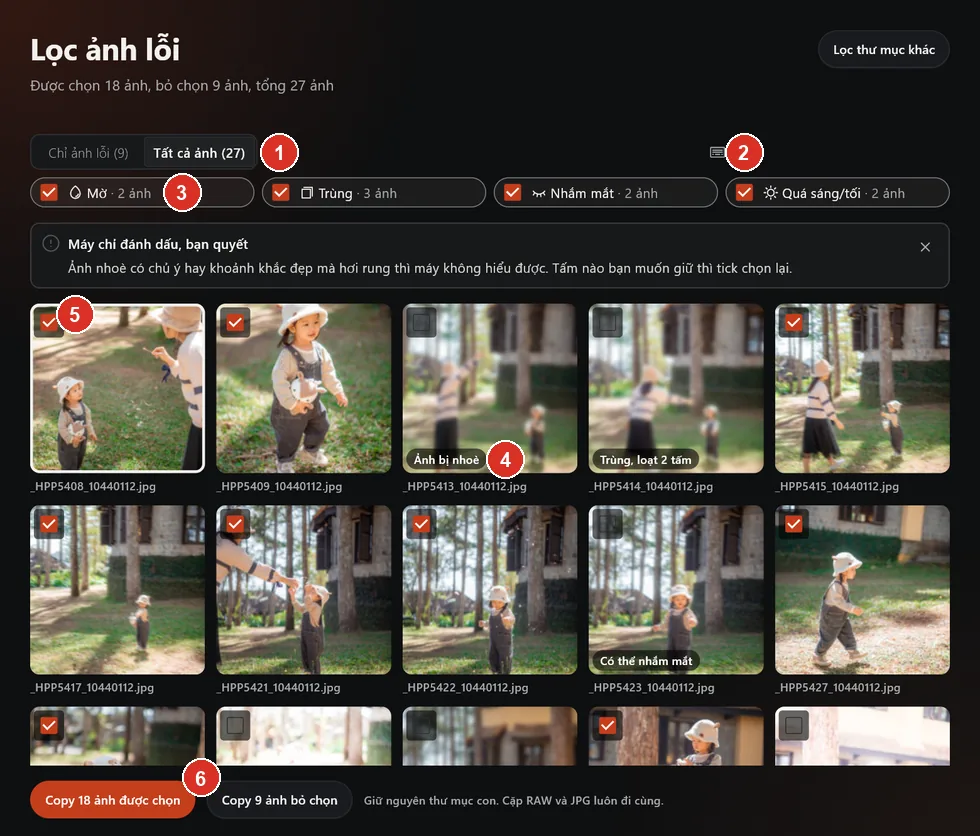
- Problem photos only and All photos: switch between flagged photos and the whole folder.
- Shortcuts: hover the keyboard icon to see them.
- Reason buttons: turn each kind of problem on or off, with the number of photos for each.
- Reason tag: why the photo was unchosen.
- Checkbox: tick to keep a photo, untick to drop it.
- Copy buttons: copy chosen or unchosen photos to a new folder.
The note "The app only marks, you decide" can be closed with its X and stays closed.
Problem photos are already unchosen and carry a reason: Blurred, Duplicate, burst of 3, Eyes may be closed, Overexposed or Underexposed.
Shot low-key on purpose? Turn off Exposure, and photos flagged only for that reason are chosen again. Blurred, Duplicates and Closed eyes turn on and off the same way.
Photos the app could not read sit at the end of the grid, marked Could not read, and are chosen by default.
Step 3: keep the shots you like
The app only marks, you decide. It cannot tell intentional blur or a great moment with slight shake. Tick any photo you want to keep. Scroll through All photos to drop anything the app missed.
Click a photo to view it larger. Use the keyboard to go faster:
- Arrow keys: previous or next photo.
- Space or Enter: open the large view, press again to close it.
- C: choose the photo.
- X: unchoose the photo.
Step 4: copy the good photos to a new folder
- Click Copy n chosen photos to take the good ones, or Copy n unchosen photos to gather the rejects in one place.
- Pick a destination folder. It cannot be the source folder, sit inside it or contain it.
- The app copies and keeps your subfolders. RAW and JPG pairs with the same name always stay together. Files already in the destination are skipped.
After copying, click Open folder to see the photos, or Share this folder on Shotpik to add the good photos straight to live sharing and create an album for your client (see Sync from PC). When you are done, click Cull another folder; if you picked or unpicked photos yourself, the app asks before dropping the results.
Frequently asked questions
Is Photo culling free?
Yes. Photo culling is free for every Shotpik account, including the Free plan. Just download Shotpik Agent and log in.
Is there software that finds blurry photos and closed eyes automatically?
Yes. Photo culling in Shotpik Agent flags blurred, duplicate, closed-eye, overexposed and underexposed photos, on Windows and macOS.
Are unchosen photos deleted?
No. Unchosen only means the photo is left out when you click Copy n chosen photos. The original stays in the folder.
Which photo is kept in a burst of duplicates?
The app keeps the best one, preferring sharp frames with eyes open, and unchooses the rest of the burst. If you prefer another frame, view it larger and tick it.
Can it cull RAW files?
Yes. The app reads the preview already inside RAW files such as CR3, NEF and ARW, so it is as quick as JPEG.
Why was a photo with closed eyes not flagged?
The app can miss some, especially small, turned or partly hidden faces. Scroll through All photos before copying.
Still have a question?
Message Shotpik and we will reply during working hours.