

User guide · 02
Create a proofing album
Create an album from Google Drive or your computer, and what each setting does: deadline, Done button, several choosers, watermark, password.
Updated
Press the red Create album button. Photos can come from Google Drive or from your computer (Local).
From Google Drive
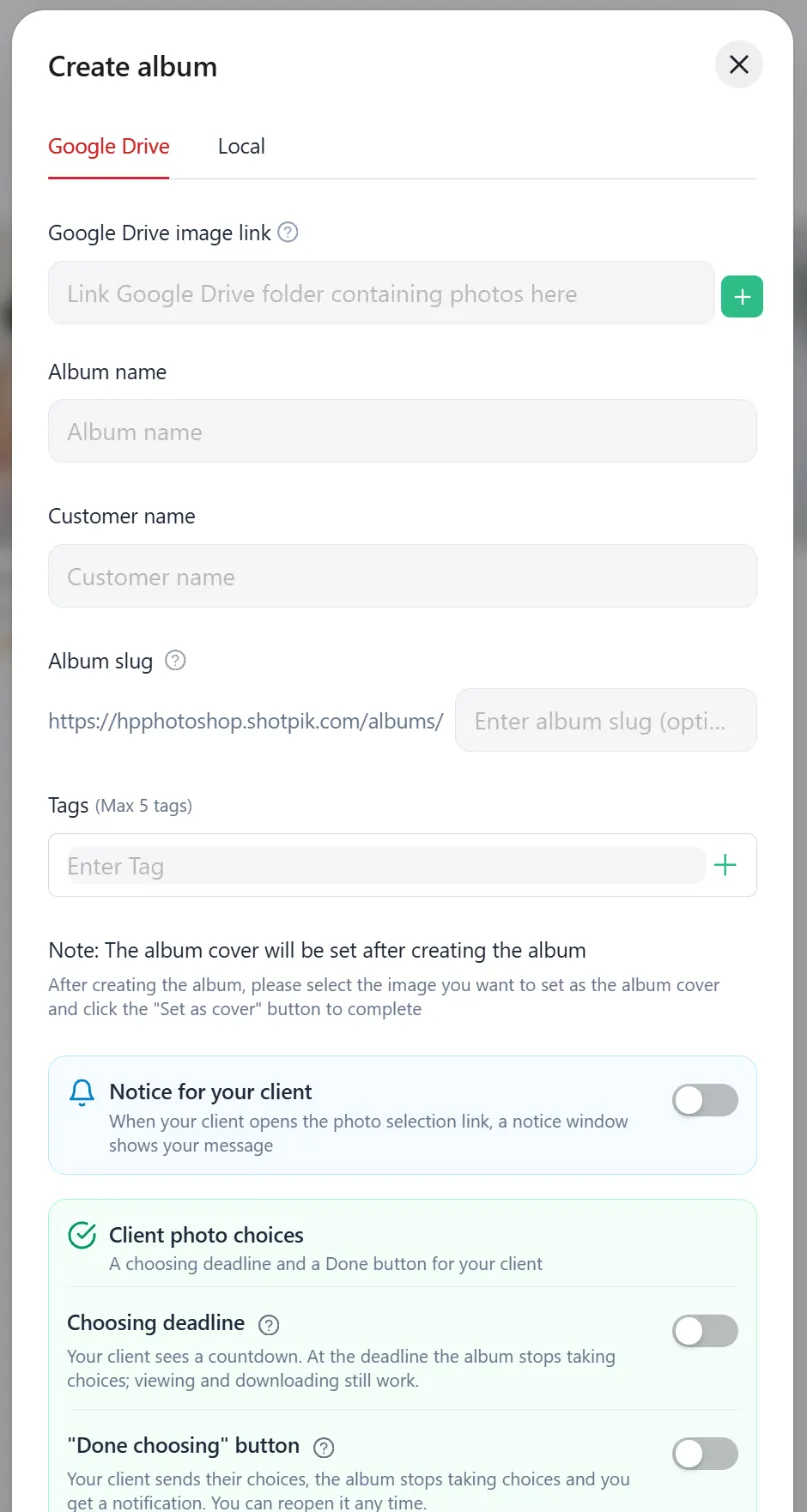
- In Google Drive, share the photo folder as "Anyone with the link" and copy the link.
- Paste it into Google Drive image link. Several folders (ceremony, party, candids)? Press the green + to add more. Each folder becomes its own tab in the album.
- Fill in Album name and Customer name.
- Album slug (optional): the end of the client link, for example
/albums/lan-tuan. Leave it empty and Shotpik picks one. - Tags (up to 5): labels to sort your own albums.
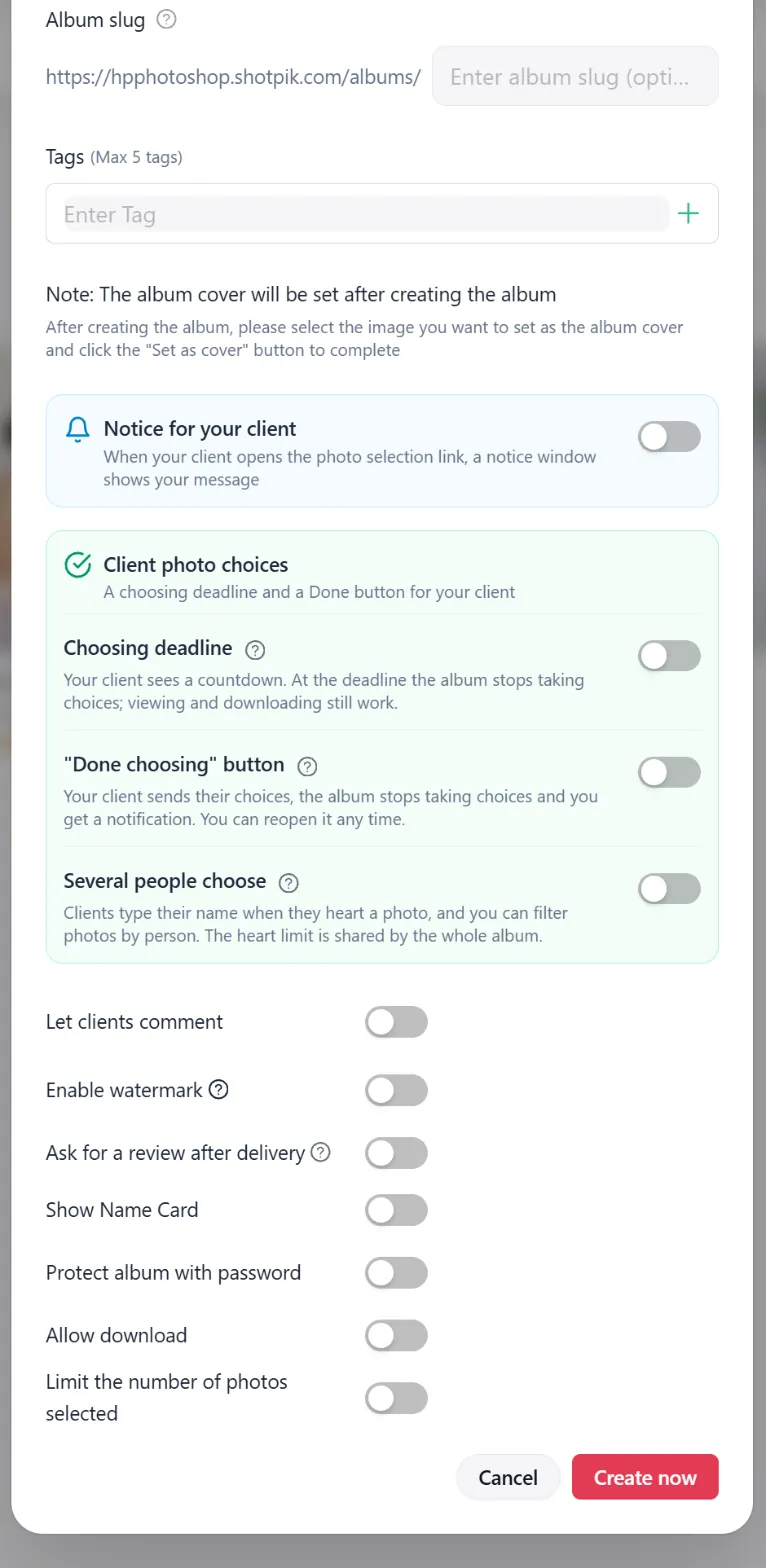
- Turn on the settings you need (table below), then press Create now.
The cover is chosen after creating: open the album, open a photo and set it as the cover.
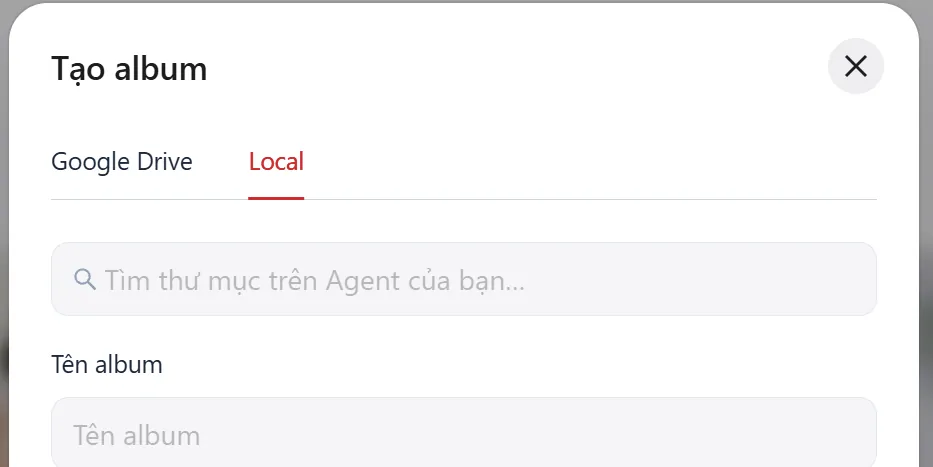
From your computer (Local)
If Shotpik Agent is installed on your computer, choose the Local tab and search for the photo folder on your machine. The rest is the same as with Google Drive.
What each setting does
| Setting | What it does |
|---|---|
| Notice for your client | When the client opens the link, a notice shows your title and message with your logo. It shows again after 3 days; the client taps the green bell to read it again. |
| Choosing deadline | The client sees a countdown (for example "1 day left to choose"). At the deadline the album stops taking choices; viewing and downloading still work. |
| "Done choosing" button | The client sends their choices, the album stops taking choices and you get a notification. You can reopen it any time. |
| Several people choose | Each person types their name when they heart a photo (bride, groom, parents). You can filter photos by person. The heart limit is shared by the whole album; you set the maximum number of people. |
| Let clients comment | Clients write notes on each photo and draw brush notes. You can add a comment password. |
| Enable watermark | Photos show your signature. The text comes from account Settings. |
| Ask for a review after delivery | When you deliver the edited photos, the client is asked for stars and a few words. |
| Show Name Card | Shows your card (name, contacts) on the album page. |
| Protect album with password | The client needs a password to open the album. |
| Allow download | The client can download photos. |
| Limit the number of photos selected | For example 30 photos. Once the client has hearted that many, no more hearts. |
Every setting can be changed later: open the album and press Customize album.
Still have a question?
Message Shotpik and we will reply during working hours.