

· 5 min read
How to Edit Photos Based on Client Feedback with Shotpik
Edit photos based on client feedback: open your Shotpik album in Fotoreto, match RAW files by name, filter client favorites and see comments and brush notes.

Your clients browse the Shotpik gallery, drop hearts, and leave comments asking to brighten a specific corner or remove an object, your next task is opening your editing software on the computer. Doing this manually means switching back and forth between the web browser and your local folders, which is time consuming and increases the risk of missing client requests.
Why handling client feedback manually wastes time
When dealing with hundreds or thousands of photos from a single session, finding the exact files requested by clients becomes a major bottleneck. You typically have to keep the browser tab open, read through individual notes, and search for matching file names in your storage drive. This tedious workflow often leads to naming confusion, especially when clients refer to web display numbers rather than original raw file names. Constantly context switching between platforms also disrupts your creative focus and slows down post production delivery times.
Step-by-step guide
The integration between Shotpik and Fotoreto solves this friction by automating the data matching process entirely.
Step 1: Open the album and launch the feedback tool
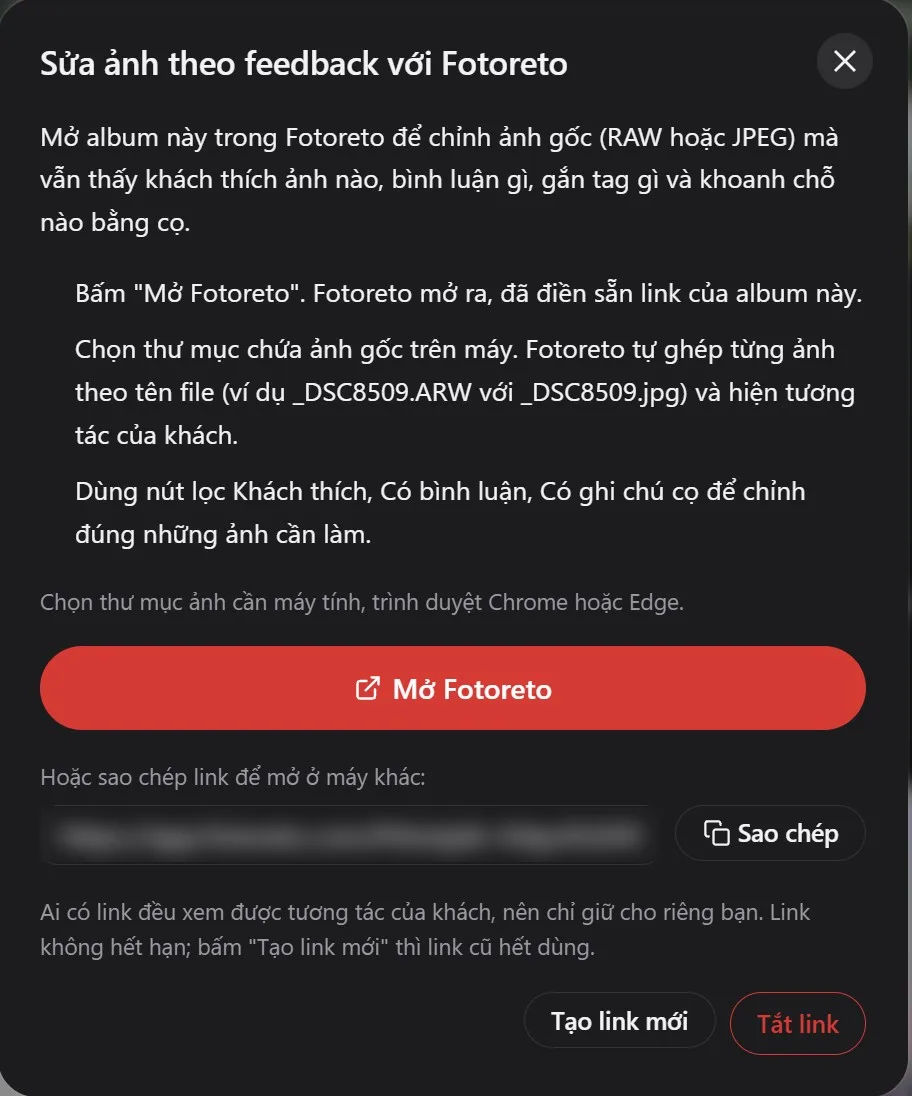
Navigate to the client album inside your Shotpik dashboard and click the button for editing from feedback with Fotoreto. A dialog opens with the steps and a button to open the album in Fotoreto.
Step 2: Launch the photo editing app
Inside the opened dialog box, click the button to open Fotoreto. Fotoreto will automatically launch in your web browser with the album link pre-filled, requiring no manual login to your Shotpik account.
Step 3: Link your local photo folder
Inside the Fotoreto interface, click Choose photo folder and locate the folder containing your original RAW or JPEG files stored on your local machine. Choosing a folder needs a computer with Chrome or Edge. The application will automatically match each image based on its file name, supporting both RAW and JPEG files with the same name while automatically prioritizing the RAW file.
Step 4: Verify the matching results
Once the matching process completes, Fotoreto will display a detailed status message with how many photos of the album were matched and a list of the file names it could not find. You can use this list to quickly verify if any files are missing from your local directory.
Step 5: Filter images and review client notes
At the bottom toolbar of the workspace, click Client picks to open filters: Client likes, Has comments, Has brush notes, By guest and By tag. When filtered, unmatched images are simply hidden rather than discarded. On each thumbnail, you will see familiar icons like hearts, speech bubbles, or brush strokes. The Client notes panel clearly displays who dropped a heart or tag, comment timestamps, and specific instructions color-coded by brush marks. You can drag this panel anywhere on the screen or collapse it when you need more room. Client brush marks overlay directly on the preview and can be quickly toggled on and off with the N key. Note that these brush marks are for reference only and will never be rendered into your exported output files.
Step 6: Process and deliver final outputs
After finishing all edits according to the client instructions, export your images as usual. Upload the finalized folder to Google Drive and add it to the edited photos section of your Shotpik album so clients can review the final results.
Tips for seamless photo matching
To ensure you never miss any client requests, adopt a few simple habits during your workflow. If clients continue to drop hearts or add comments after you have already started editing, simply open the menu inside Fotoreto and click Get new data to fetch the latest interactions. The Shotpik dialog also has a link you can copy, so you can easily open the session on another computer in your studio. Keep in mind that anyone with this link can view client interactions, so keep it private. The link never expires, but creating a new link in the dialog turns the old one off, and you can also turn the link off at any time. This integration is completely free for all Fotoreto users, and when used with a Shotpik album, it lifts the 10 photo limit of the free tier. All processing runs directly on your local machine, and your photos are never uploaded anywhere.
Frequently asked questions
Does this feature require a paid subscription or a Fotoreto account?
No, linking feedback with your Shotpik album is completely free for all users and does not require you to log into a Fotoreto account. Fotoreto offers 16-bit RAW editing on its free tier without registration, while the Premium plan costs $19.99 lifetime or $12.99 a year, which adds culling, 111 color looks, syncing color across a shoot and AI skin retouching, with no per-photo fees.
What happens if the RAW file name does not match the web display name?
Fotoreto ignores common endings such as -edited, _edit and (1), and does not care about upper or lower case, so _DSC8509.ARW still matches _DSC8509-edited.jpg on Shotpik. Files that were renamed completely show up in the "not found" list, and if both RAW and JPEG files share the same name in your folder, the software automatically prioritizes the RAW file for editing.
Do I need to download client photos to my computer before working?
You do not need to download or sync photos to any external cloud storage because Fotoreto executes all editing operations directly on your local computer hardware. Your original files remain safely in your local directory while the software reads interaction data from the Shotpik link to display them side by side.
How can I prevent unauthorized access to the album feedback link?
The connection link is intended solely for you and authorized collaborators. If you suspect the link has been exposed or you want to revoke access, simply open the tool dialog in Shotpik and create a new link, which stops the old one from working, or turn the link off completely.
Pairing an online proofing platform with a dedicated local editing app allows studios to streamline turnaround times and maximize client satisfaction.
Send your first album with Shotpik
Free forever, no card needed. Clients open the link and start choosing right away.
More posts
 How to Prepare Photos for Client Selection in 8 Steps
Prepare photos for client selection in 8 steps: cull bad frames, even out color, export at 3000 px, keep original file names, split folders, set Shotpik rules.
 Wedding Photo Editing Workflow: From Memory Card to Delivery
A wedding photo editing workflow in 8 steps: back up, cull and color the whole set in Fotoreto, send proofs on Shotpik, edit from feedback and deliver.